
simplin simplin
simplin.ai 홈simplin.ai
iPhone · Android 앱 · 직원용iPhone · Android app · for employees

Simplin 앱 시작하기 Getting started with the Simplin app

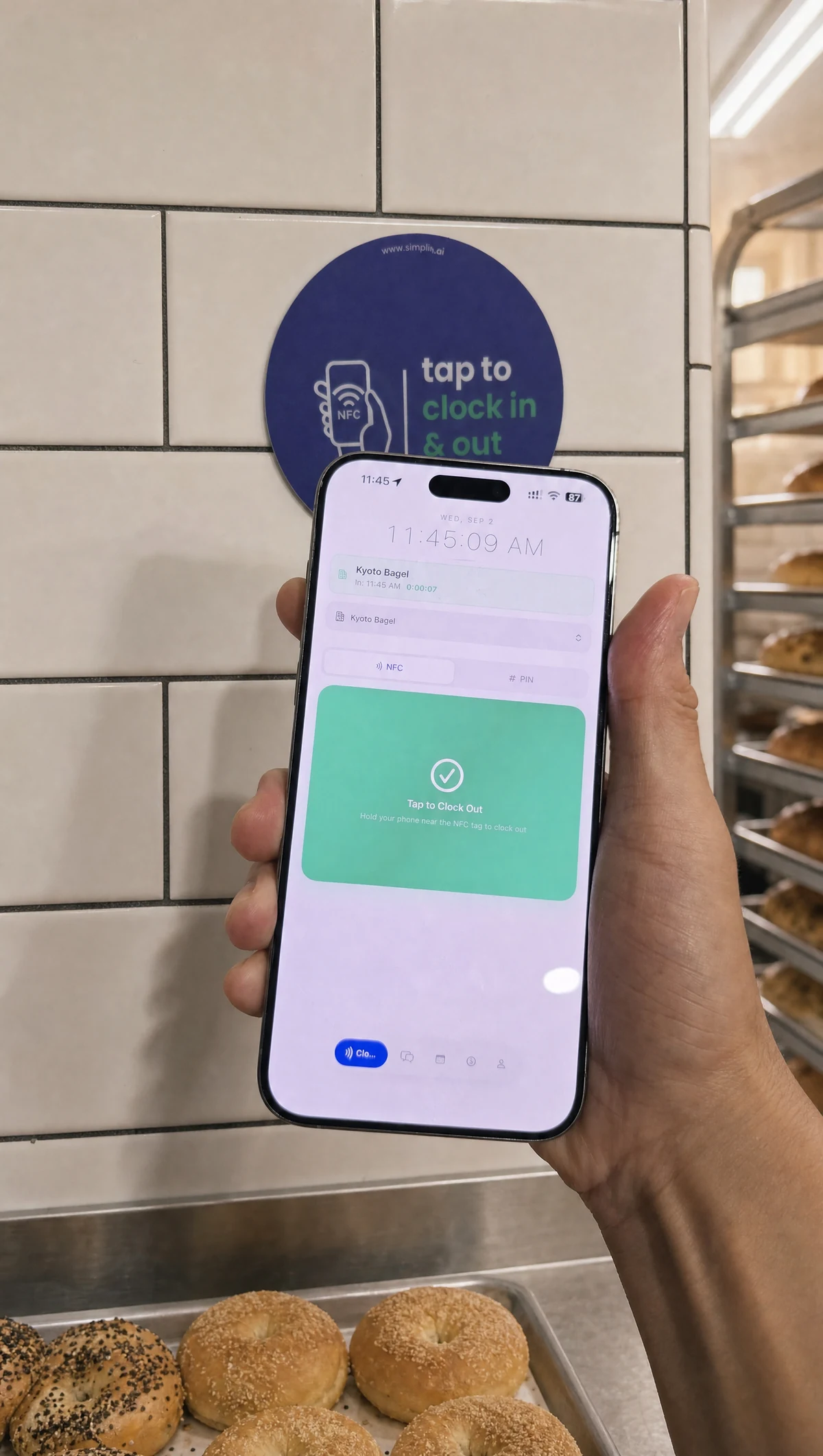
출근할 때 폰을 스티커에 갖다 대면 끝. 이번 주 스케줄과 지금까지 번 돈을 앱에서 바로 보고, 팀 메시지는 내 언어로 받습니다. 이 가이드는 사장님이 보낸 초대로 가입하는 방법부터 각 화면의 사용법까지 순서대로 안내합니다. Hold your phone to the sticker when you arrive and you are clocked in. See this week's schedule and what you have earned so far, and get team messages in your own language. This guide covers signing up from your manager's invite and every screen in the app.

An employee holding the Simplin app next to the NFC sticker on a bagel shop wall
1

사장님이 보낸 초대를 여세요Open the invite from your manager

Simplin은 혼자 가입하는 앱이 아닙니다. 매장에서 보낸 초대가 있어야 그 매장의 직원으로 연결됩니다. 초대는 이메일이나 카톡·문자 링크로 옵니다.Simplin is not an app you sign up for on your own. You need an invite from your store to be connected as its employee. It comes as an email or a text link.

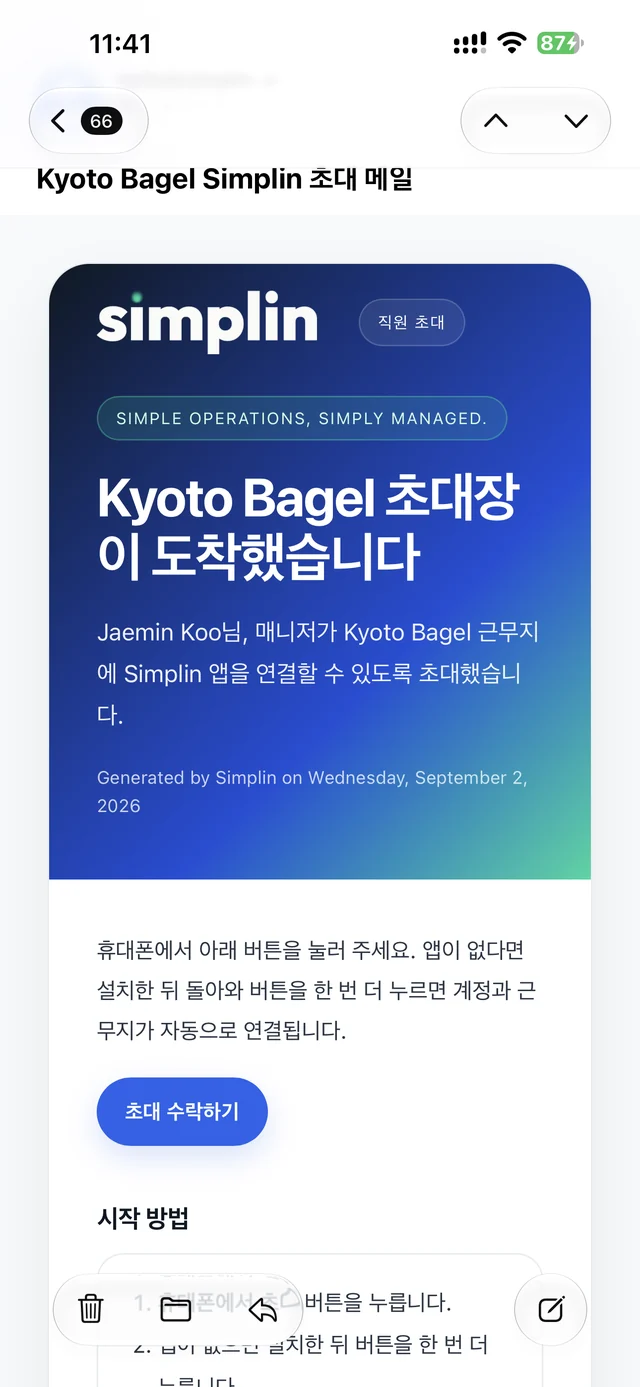
  1. 이메일로 온 경우: "You're invited to join {매장 이름}" 메일을 열고 Accept your invite 버튼을 폰에서 누르세요.By email: open the message titled "You're invited to join {store name}" and tap Accept your invite on your phone.
  2. 카톡·문자로 온 경우: 링크를 그대로 누르세요.By text or KakaoTalk: just tap the link.
  3. 앱이 아직 없으면 설치 안내 화면이 열립니다. 앱이 이미 있으면 바로 앱이 열리니 3단계로 가세요.If you do not have the app yet, an install page opens. If you already have it, the app opens right away, so skip to step 3.
반드시 폰에서 여세요.Open it on your phone. 컴퓨터에서 열면 설치 안내만 보이고 진행이 안 됩니다. 링크는 14일 동안 유효하고, 만료됐으면 사장님께 다시 보내 달라고 하세요. On a computer you only see the install page and cannot continue. The link works for 14 days. If it has expired, ask your manager to send a new one.
Invite email from Kyoto Bagel with the Accept your invite button
사장님이 보낸 초대 이메일. 파란 버튼을 폰에서 누릅니다The invite email. Tap the blue button on your phone
2

앱을 설치하고 여세요. 초대가 그대로 이어집니다Install the app and open it. Your invite carries over

파란색 simplin 아이콘의 무료 앱입니다. 설치 안내 화면에서 스토어로 넘어가면 초대가 폰에 기억되어, 앱을 처음 여는 순간 매장 정보가 채워진 화면이 바로 나옵니다.It is a free app with a blue simplin icon. When you go to the store from the install page, your phone remembers the invite, so the first time you open the app the store details are already there.

  1. 설치 안내 화면에서 App Store(iPhone) 또는 Google Play(Android) 버튼을 누르고 받기 또는 설치를 누르세요.On the install page tap App Store on iPhone or Google Play on Android, then Get or Install.
  2. 설치가 끝나면 앱을 여세요. iPhone은 "Simplin이 붙여넣기를 원합니다" 창이 뜨는데 붙여넣기 허용을 누르면 됩니다. 초대 링크를 읽는 과정입니다.When it is installed, open the app. On iPhone a "Simplin would like to paste" prompt appears. Tap Allow Paste. That is the app reading your invite link.
  3. Join {매장 이름} on Simplin 화면이 나오면 3단계로 가세요. 안 나오면 이메일이나 문자로 돌아가 링크를 한 번 더 누르면 같은 화면이 열립니다.When you see Join {store name} on Simplin, go to step 3. If you do not, go back to the email or text and tap the link once more to open the same screen.
두 개의 앱이 있습니다.There are two apps. 직원이 쓰는 앱은 파란색 아이콘의 Simplin입니다. 크림색 아이콘의 Simplin Manager는 사장님과 매니저용이니 헷갈리지 마세요. Employees use the blue Simplin app. The cream-colored Simplin Manager is for owners and managers.
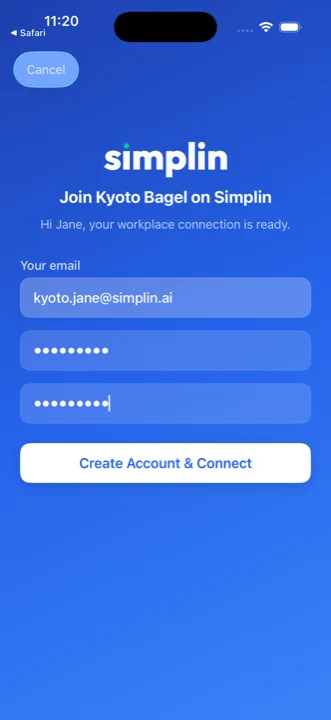
Join Kyoto Bagel on Simplin screen with email prefilled and two password fields
앱을 열면 나오는 초대 화면The invite screen when the app opens
3

비밀번호를 정하면 바로 출퇴근 화면입니다Pick a password and you land on the clock screen

매장 이름과 이메일은 사장님이 등록한 대로 이미 채워져 있습니다. 직원이 하는 일은 비밀번호를 정하는 것뿐입니다.The store name and your email are already filled in from what your manager registered. All you do is choose a password.

  1. 비밀번호를 정해서 두 칸에 똑같이 입력하세요. 6자 이상이면 됩니다.Type a password of at least 6 characters in both fields.
  2. Create Account & Connect를 누르세요.Tap Create Account & Connect.
  3. 계정이 만들어지고 매장에 연결되어 바로 Clock 화면이 열립니다. 인증 메일도, 매장 코드도 필요 없습니다.Your account is created, connected to the store, and the Clock screen opens. No verification email, no store code.
  4. 처음 열릴 때 위치 권한과 알림 권한을 묻습니다. 둘 다 허용하세요. 위치는 출퇴근 확인에, 알림은 스케줄과 메시지에 쓰입니다.The app asks for location and notification permission the first time. Allow both. Location is used to verify clock-ins, notifications for schedules and messages.
이미 Simplin 계정이 있다면Already have a Simplin account? 같은 화면이 로그인 화면으로 바뀌고 비밀번호 한 칸만 남습니다. 기존 비밀번호로 로그인하면 새 매장이 추가로 연결됩니다. The same screen switches to sign-in with a single password field. Sign in with your existing password and the new store is added to your account.
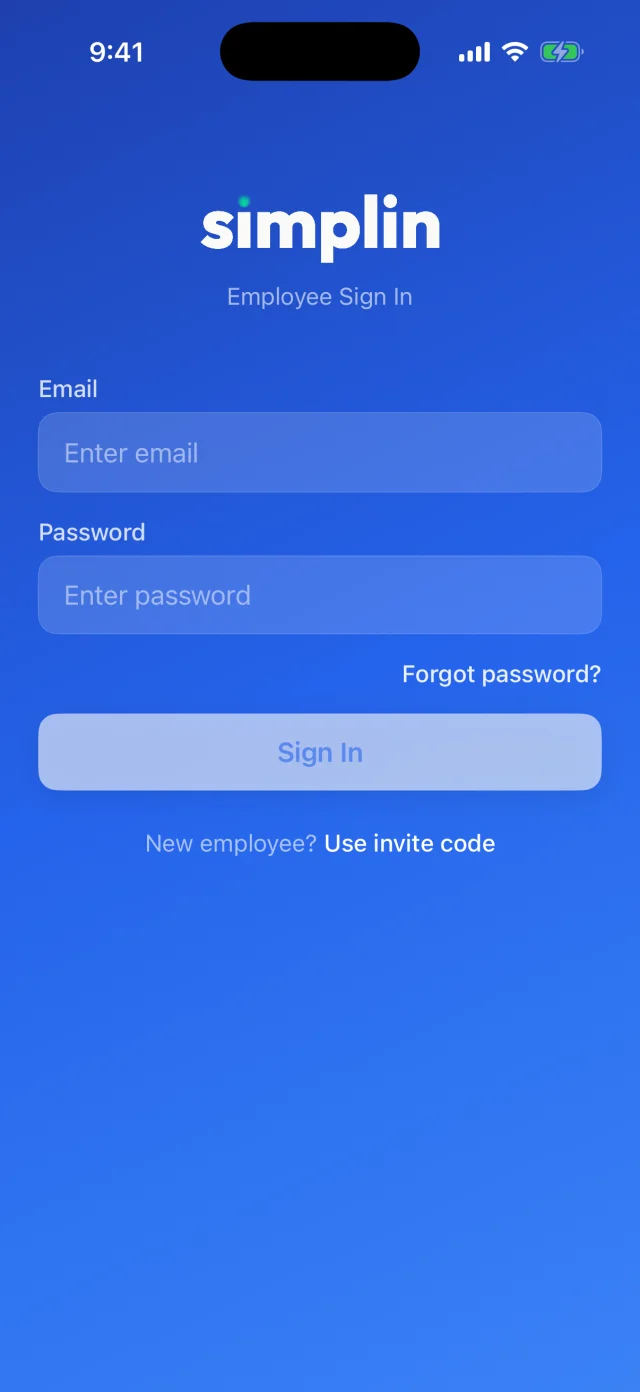
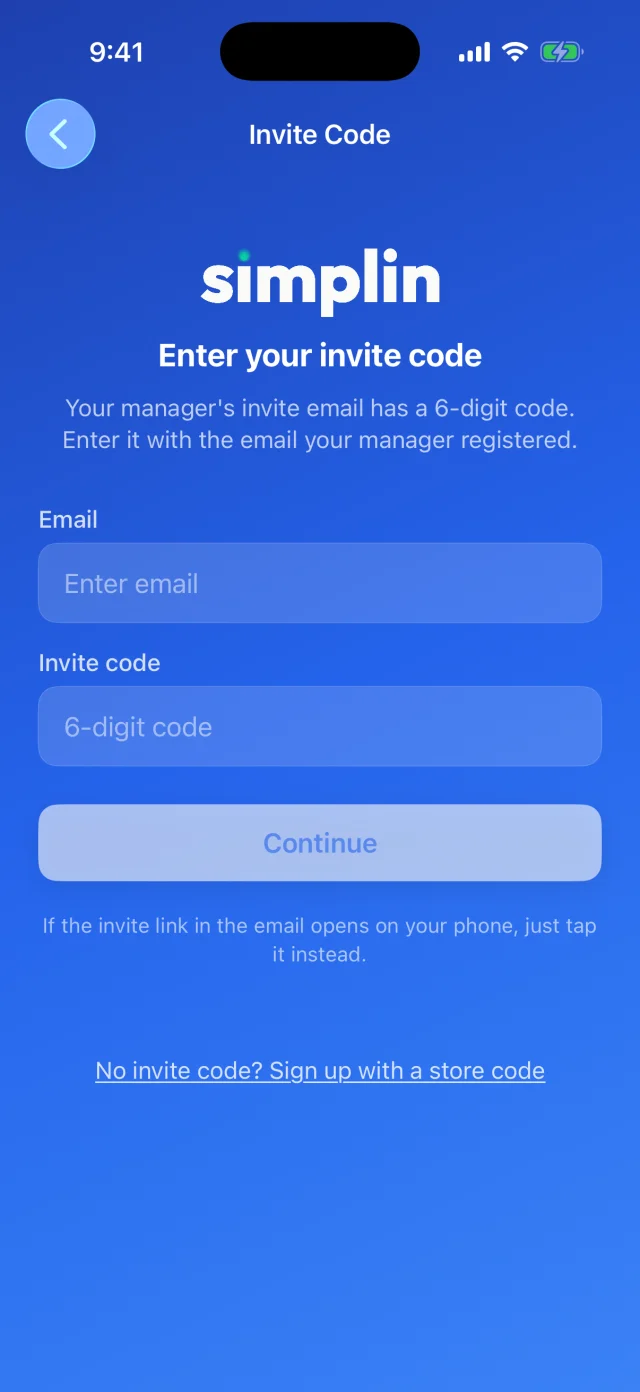
링크가 열리지 않나요? 초대 코드를 쓰세요.The link will not open? Use your invite code. 초대 이메일에는 버튼 아래에 6자리 초대 코드가 있습니다. 앱을 열고 로그인 화면 아래의 Use invite code를 누른 뒤, 사장님이 등록한 이메일과 그 코드를 입력하면 같은 초대 화면이 열립니다. 인증 메일도 매장 코드도 필요 없습니다. The invite email has a 6-digit invite code under the button. Open the app, tap Use invite code at the bottom of the sign-in screen, and enter the email your manager registered plus that code. The same invite screen opens. No verification email, no store code.
Simplin employee sign-in screen with the Use invite code link
로그인 화면. 아래 Use invite codeSign-in screen with Use invite code
Invite code screen asking for email and the 6-digit code
초대 코드 입력 화면Invite code screen
화면 안내Screen by screen

앱의 다섯 개 탭, 이렇게 씁니다The five tabs and how to use them

하단 탭은 Clock, Messages, Schedule, Earnings, Profile 다섯 개입니다. 매일 쓰는 건 Clock 하나이고 나머지는 확인용입니다. 화면 속 이름과 매장은 예시입니다.The bottom bar has five tabs: Clock, Messages, Schedule, Earnings, and Profile. Clock is the one you use every day. The rest are for checking things. Names and the store shown are examples.

Clock

스티커에 대면 출근Tap the sticker to clock in

Tap to Scan NFCTap to Scan NFC

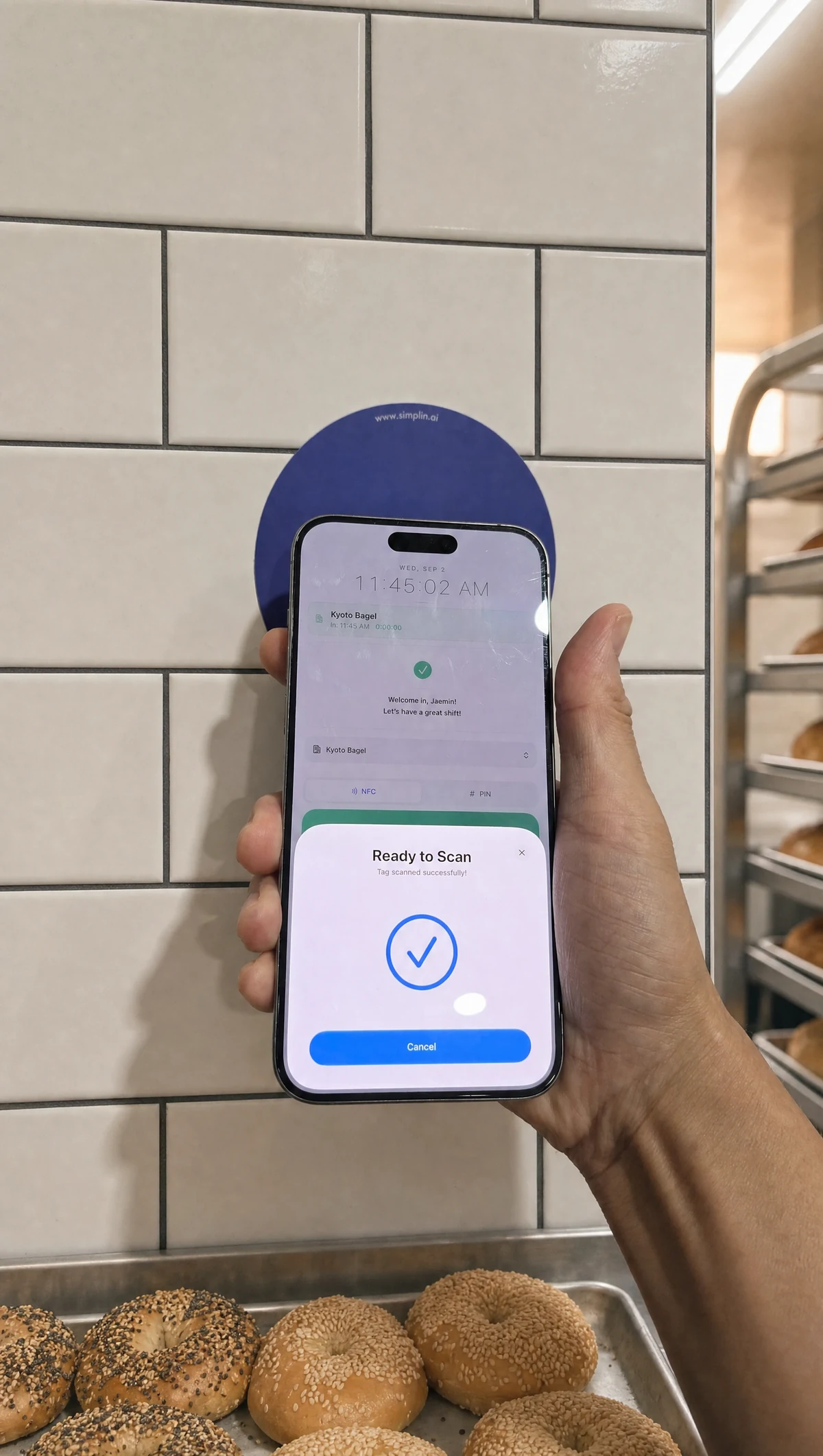
앱을 열면 현재 시각과 파란 NFC 영역이 보입니다. 파란 영역을 누르고 폰 윗부분을 매장 벽의 Simplin 스티커에 갖다 대세요. 1초 안에 인식되고 All set! 메시지와 함께 출근이 기록됩니다.The app opens on the current time and a blue NFC area. Tap the blue area and hold the top of your phone to the Simplin sticker on the wall. It reads in about a second and shows All set! with your clock-in recorded.

위치가 함께 확인됩니다Your location is checked too

스티커를 찍는 순간 폰 위치가 매장 근처인지 확인합니다. 그래서 위치 권한이 꺼져 있거나 매장 밖이면 기록되지 않고 안내 메시지가 뜹니다. 위치 권한은 설정에서 앱 사용 중 허용으로 두세요.When you tap the sticker, the app checks that your phone is near the store. If location is off or you are away from the store, nothing is recorded and a message explains why. Keep location set to While Using the App.

퇴근도 똑같이Clock out the same way

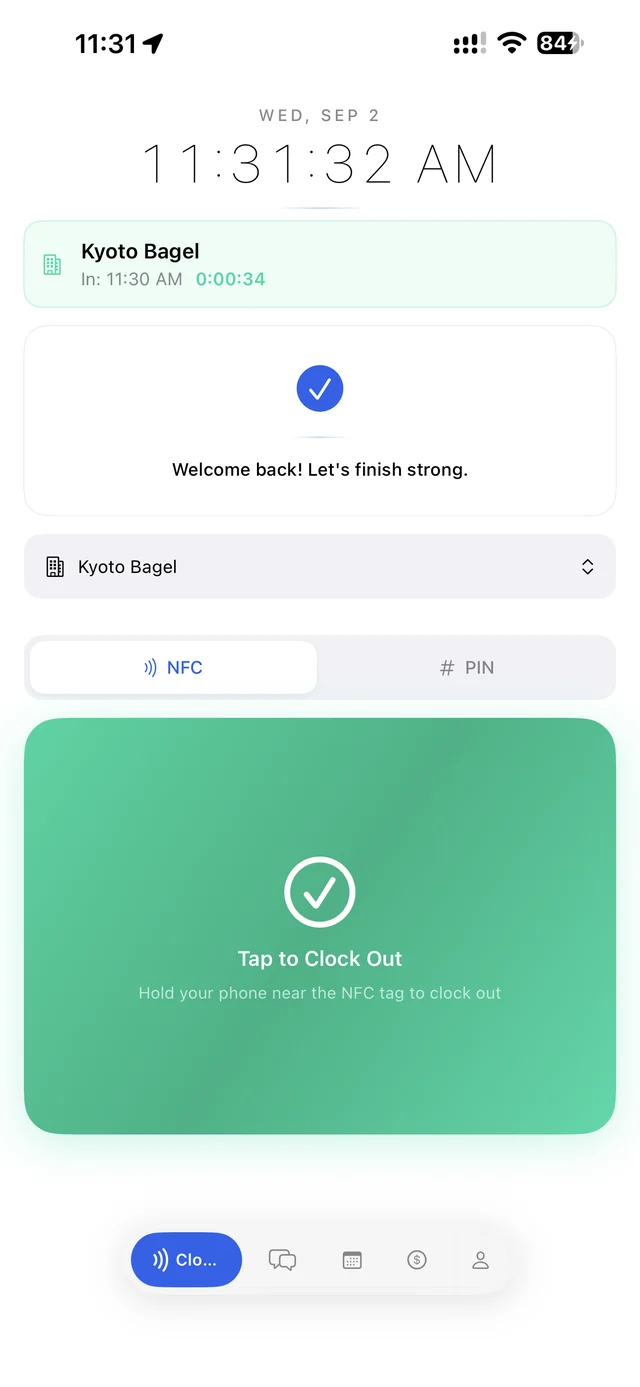
퇴근할 때 한 번 더 갖다 대면 됩니다. 근무 중에는 화면에 출근 시각과 지금까지 일한 시간이 보이고, 태그하면 Clock OutStart Break 중에 고를 수 있습니다.Hold the phone to the sticker again when you leave. While you are working, the screen shows your clock-in time and hours so far, and tapping lets you choose Clock Out or Start Break.
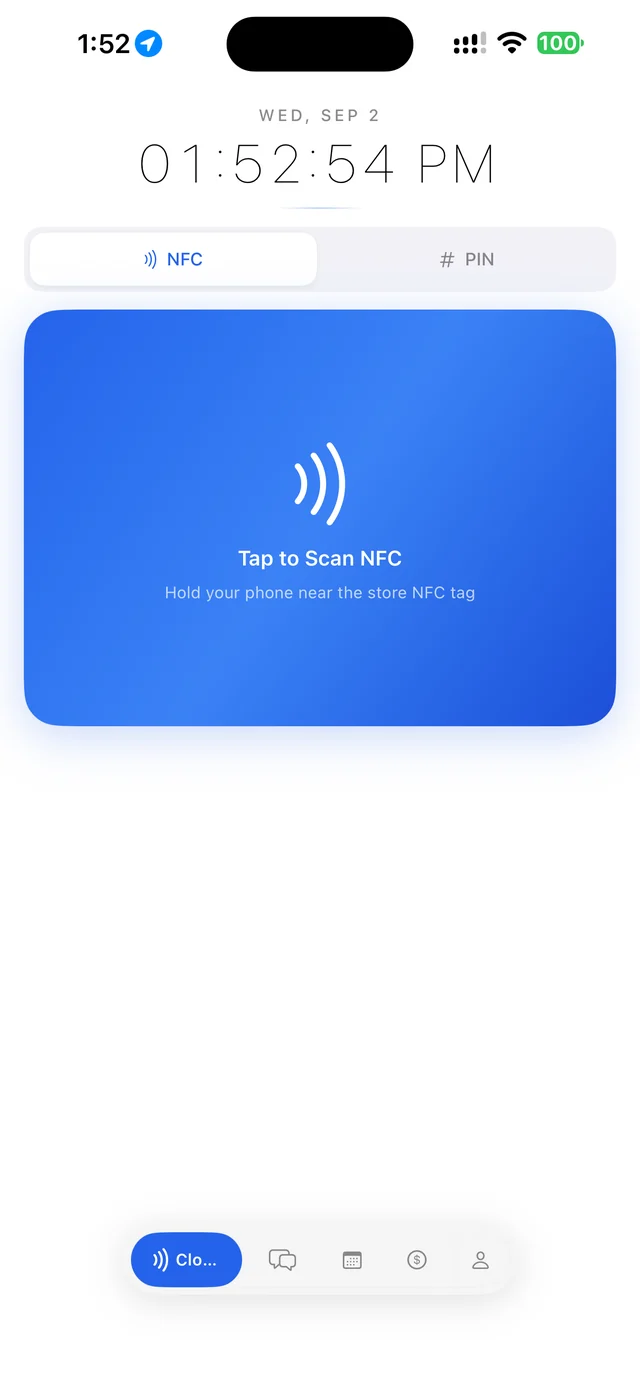
Clock screen with the blue Tap to Scan NFC card
출근 전 Clock 화면. 파란 영역을 누르고 스티커에 댑니다The Clock screen before clocking in. Tap the blue area, then hold to the sticker
Holding the phone to the sticker: the iPhone Ready to Scan sheet appears
스티커에 대면 Ready to Scan 창이 뜨고Hold it to the sticker and the Ready to Scan sheet appears
Clocked in: the card turns green and reads Tap to Clock Out
출근 완료. 카드가 초록색 Tap to Clock Out으로 바뀝니다Clocked in. The card turns green: Tap to Clock Out
Clock › PIN

스티커가 없을 때는 PIN으로No sticker yet? Use your PIN

위쪽에서 PIN을 고르세요Choose PIN at the top

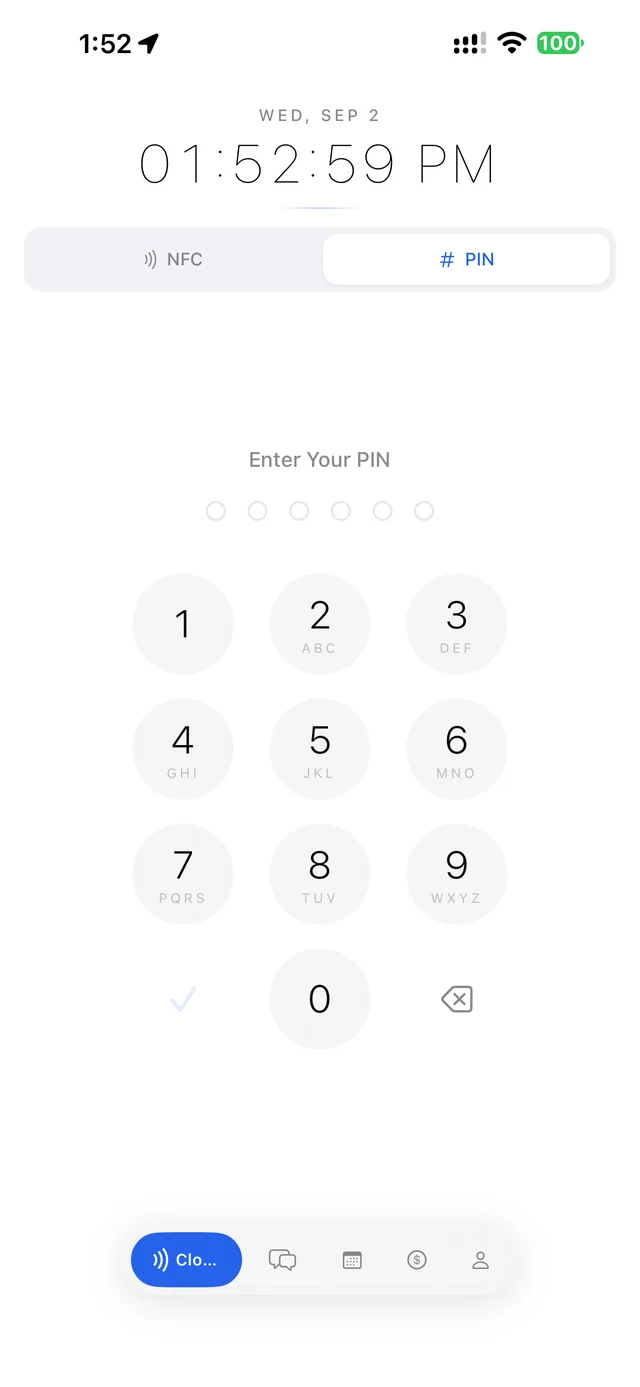
Clock 화면 위의 NFC / PIN 스위치에서 PIN을 누르면 숫자판이 나옵니다. 사장님께 받은 4~6자리 PIN을 입력하고 Submit PIN을 누르세요. 매장에 스티커가 아직 안 붙었거나 폰의 NFC가 안 될 때 쓰는 방법입니다.Switch NFC / PIN at the top of the Clock screen to PIN and a number pad appears. Enter the 4 to 6 digit PIN your manager gave you and tap Submit PIN. Use this when the sticker is not up yet or your phone's NFC does not work.

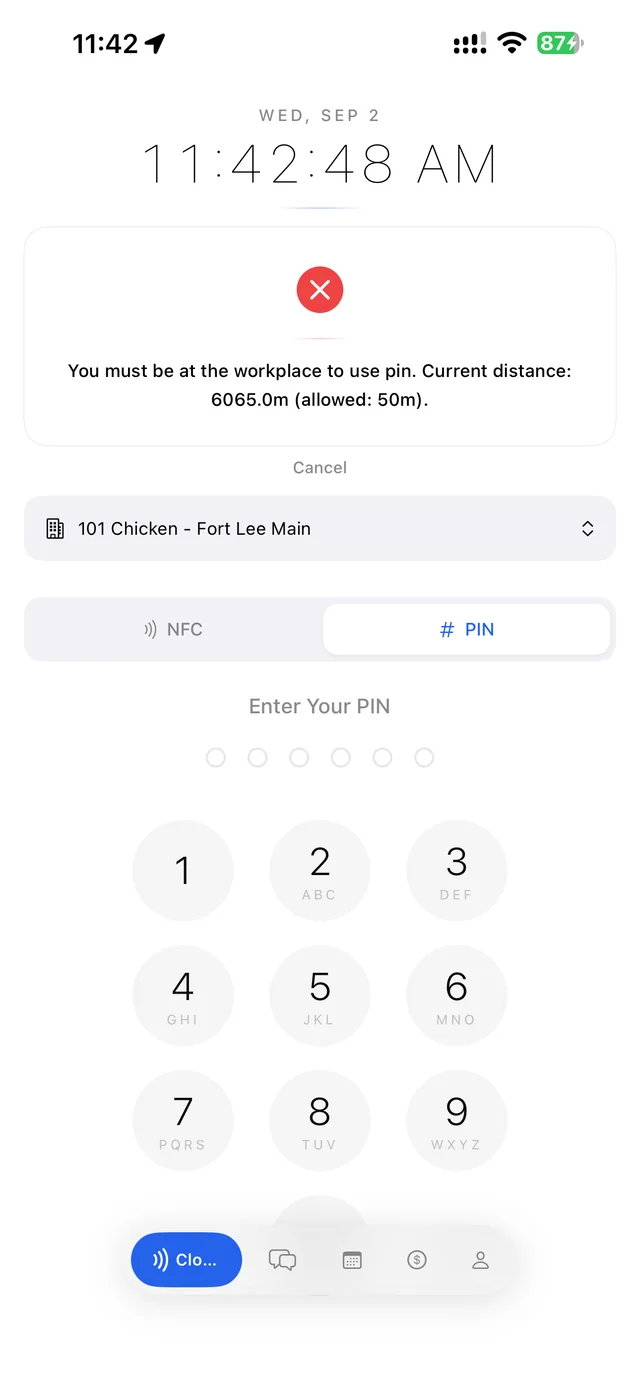
PIN으로 찍어도 위치 확인은 똑같이 됩니다. 매장 밖에서는 기록되지 않습니다.PIN clock-ins go through the same location check. Nothing is recorded outside the store.
PIN pad on the Clock screen after clocking out with a PIN
PIN 숫자판The PIN pad
Error card: you must be at the workplace to use PIN, current distance 6065m, allowed 50m
매장 밖에서는 이렇게 막힙니다Outside the store it is blocked like this
Clock › Working

휴게 시작과 퇴근Breaks and clocking out

근무 중 화면While working

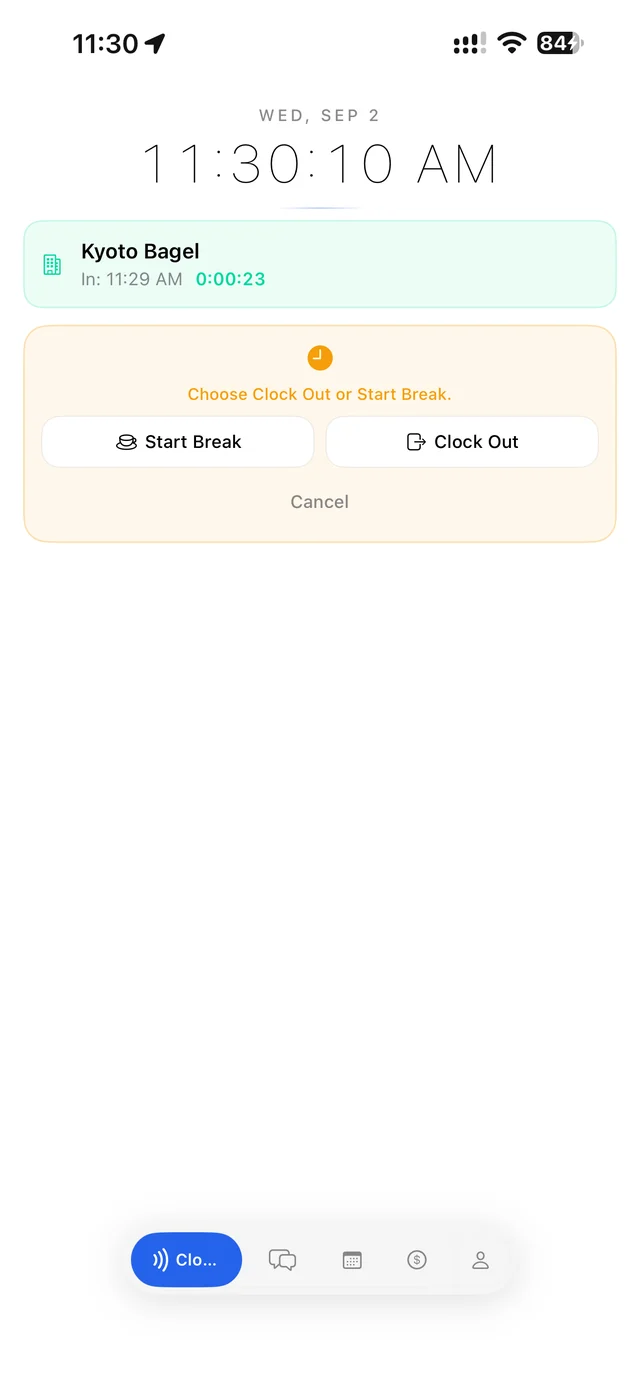
출근하면 화면에 In: 출근 시각과 지금까지 일한 시간이 표시됩니다. 스티커를 다시 찍거나 PIN을 다시 넣으면 Clock Out(퇴근)과 Start Break(휴게 시작) 중 하나를 고릅니다.Once clocked in, the screen shows In: your clock-in time and hours worked so far. Tap the sticker again or re-enter your PIN and choose Clock Out or Start Break.
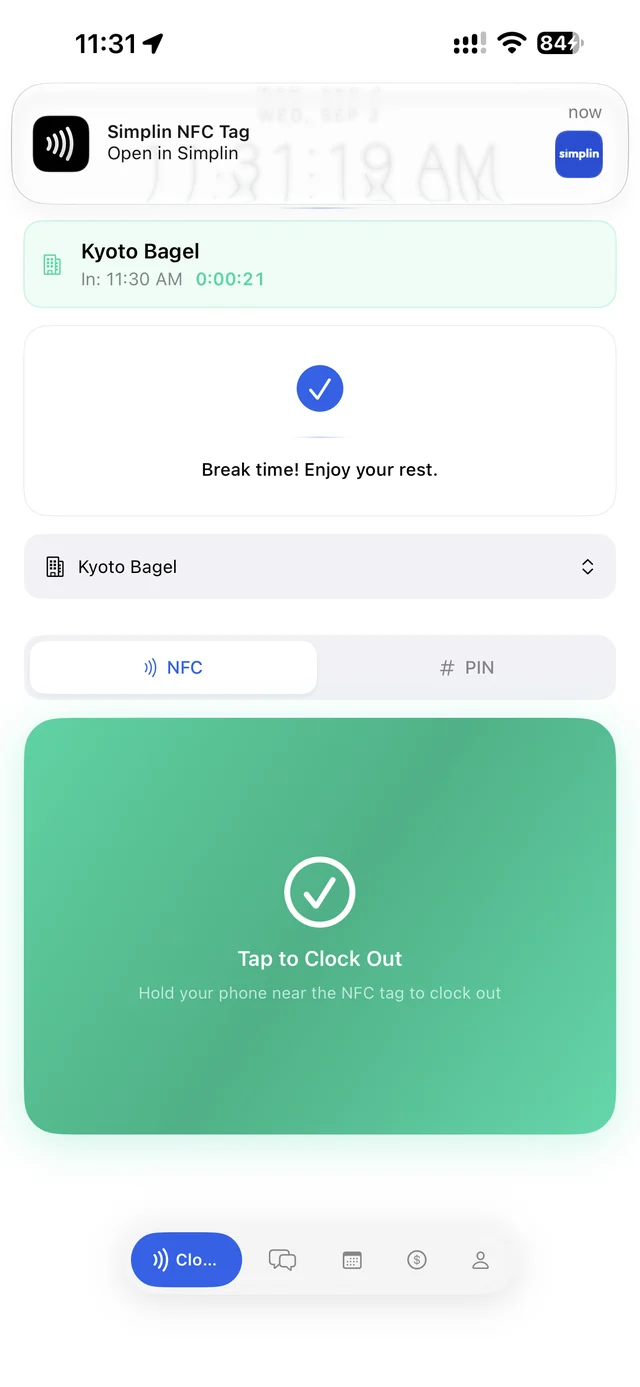
휴게 시간Breaks

휴게 중에는 End Break로 돌아오고, 그대로 퇴근할 수도 있습니다. 30분 미만 휴게는 유급, 30분 이상은 무급으로 자동 계산되니 따로 신경 쓸 것은 없습니다.On a break, come back with End Break or clock out directly. Breaks under 30 minutes count as paid and 30 minutes or more as unpaid, automatically.

퇴근을 깜빡했다면Forgot to clock out?

그날이 끝나면 자동으로 퇴근 처리되고 사장님에게 확인 요청이 갑니다. 실제 퇴근 시각은 사장님이 기록을 고쳐 줍니다.At the end of the day the shift is closed automatically and your manager is asked to review it. They correct the actual clock-out time.

Choose Clock Out or Start Break
태그 후 선택Choose after tapping
Break time message with the Simplin NFC tag banner
휴게 시작Break started
Welcome back message after ending a break
휴게 종료Break ended
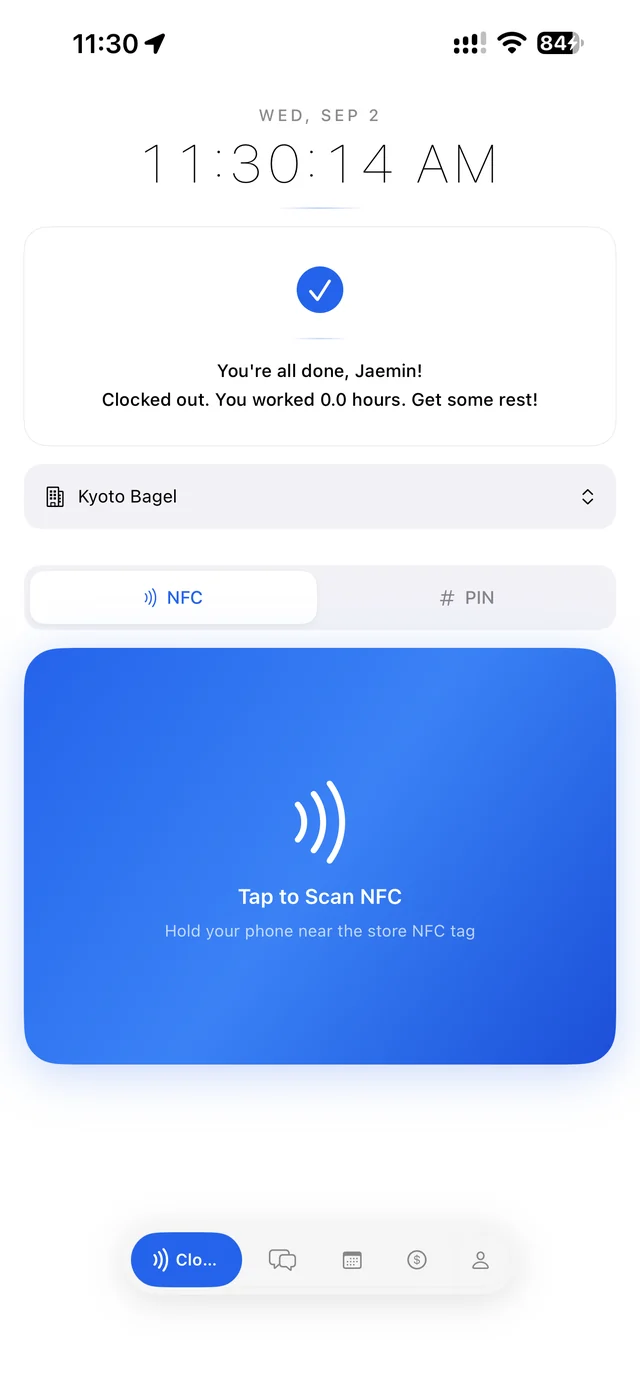
Clocked out message: you are all done
퇴근 완료Clocked out
Schedule

이번 주 내 근무My shifts this week

My Schedule

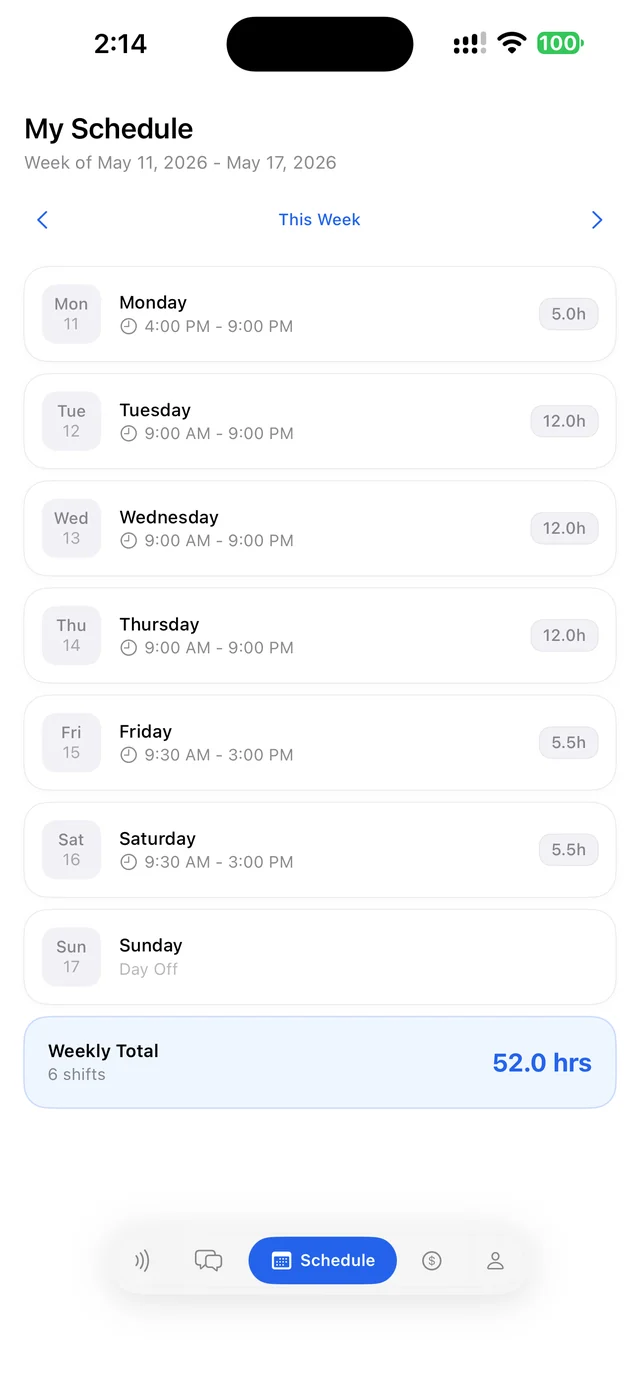
사장님이 게시한 주간 스케줄에서 내 근무만 요일별로 보여 줍니다. 위의 날짜를 눌러 다른 날로 이동하고, 근무가 없는 날은 Day Off로 표시됩니다. 아직 게시된 스케줄이 없으면 No Schedule Assigned가 나옵니다.Shows only your shifts from the schedule your manager published, day by day. Tap a date at the top to move around. Days without a shift show Day Off, and No Schedule Assigned appears until a schedule is published.

스케줄이 바뀌면 알림이 옵니다. 알림 권한을 켜 두세요.You get a notification when the schedule changes, so keep notifications on.
My Schedule tab showing the week and the shift card
My Schedule 화면. 게시된 근무가 요일별로 나옵니다My Schedule. Published shifts appear by day
Earnings

이번 주 번 돈What you earned this week

This Week

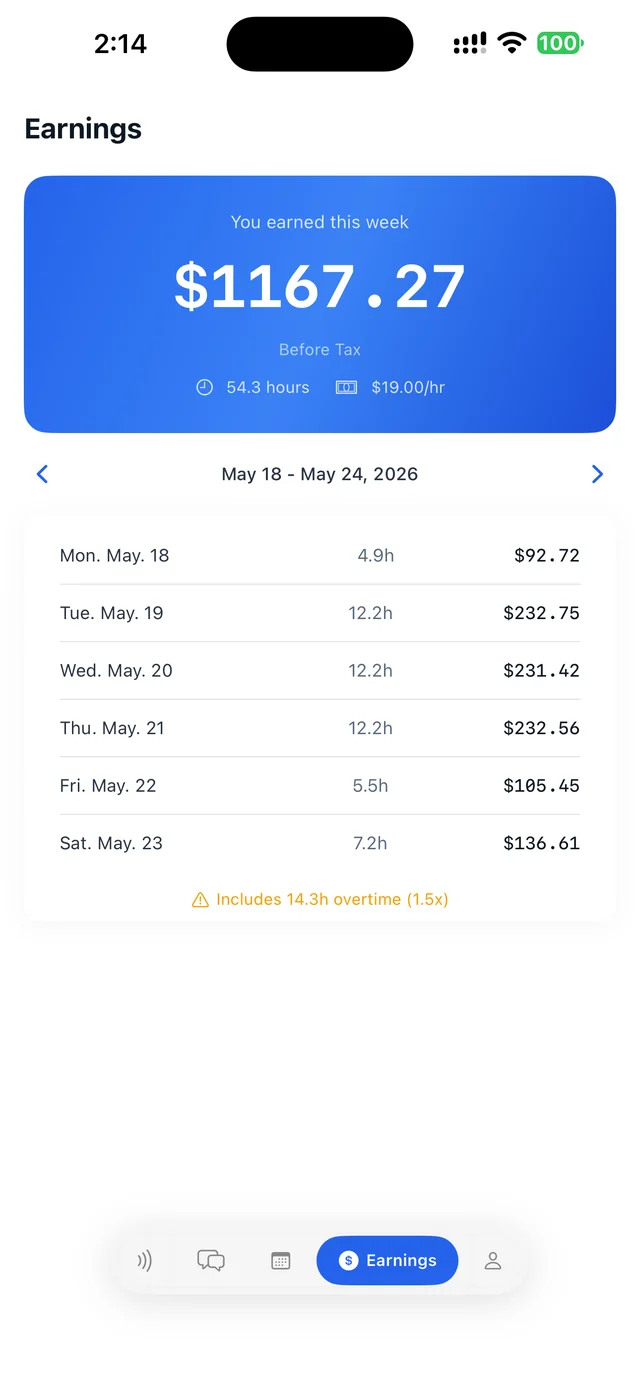
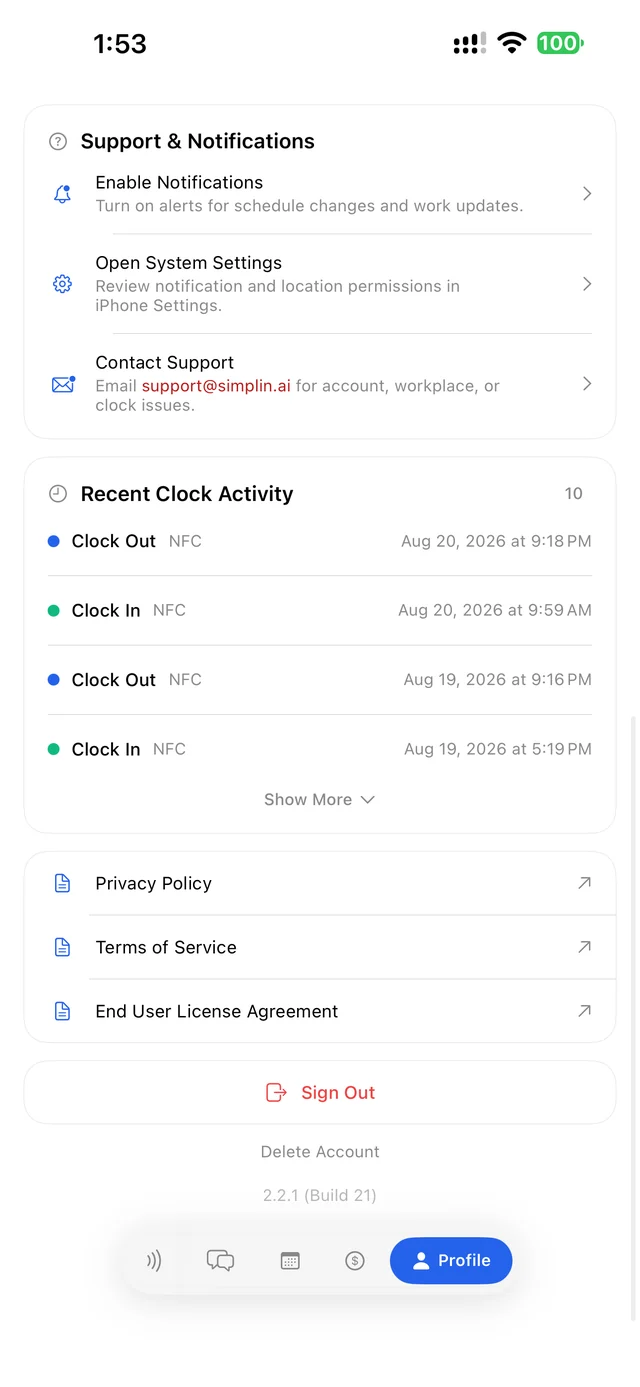
이번 주 찍힌 근무 시간에 시급을 곱한 세전(Before Tax) 금액과 요일별 시간이 보입니다. 아래 Recent Clock Activity에는 최근 출퇴근 기록이 시간 순으로 나옵니다. 내가 찍은 기록이 맞는지 여기서 확인하세요.Your hours this week times your pay rate, shown before tax, plus hours per day. Recent Clock Activity below lists your latest clock-ins and outs in order, so you can check that everything was recorded.

실제 급여는 세금과 공제를 뺀 뒤 사장님이 지급합니다. 여기 금액은 참고용입니다.Actual pay comes from your employer after taxes and deductions. The figure here is an estimate.
Earnings tab with this week's amount before tax, hours, and pay rate
이번 주 세전 금액, 시간, 시급This week before tax, hours, and pay rate
Messages

내 언어로 오는 팀 메시지Team messages in your language

공지와 1:1 대화Announcements and direct messages

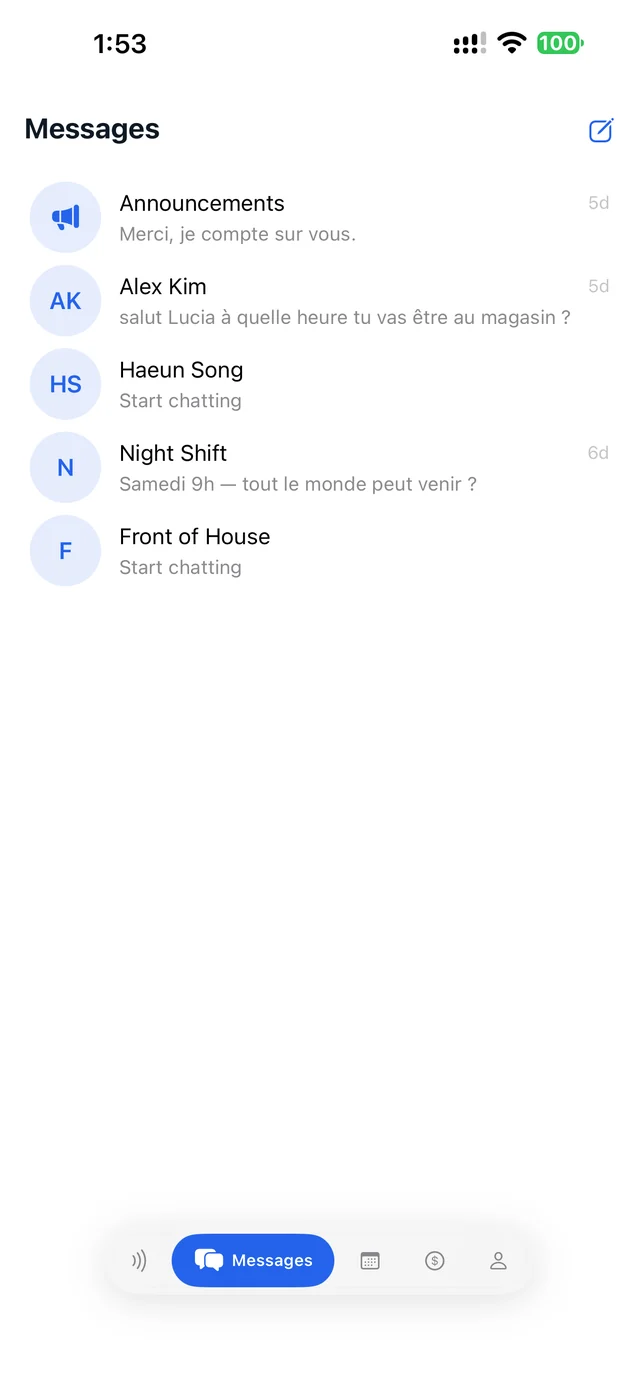
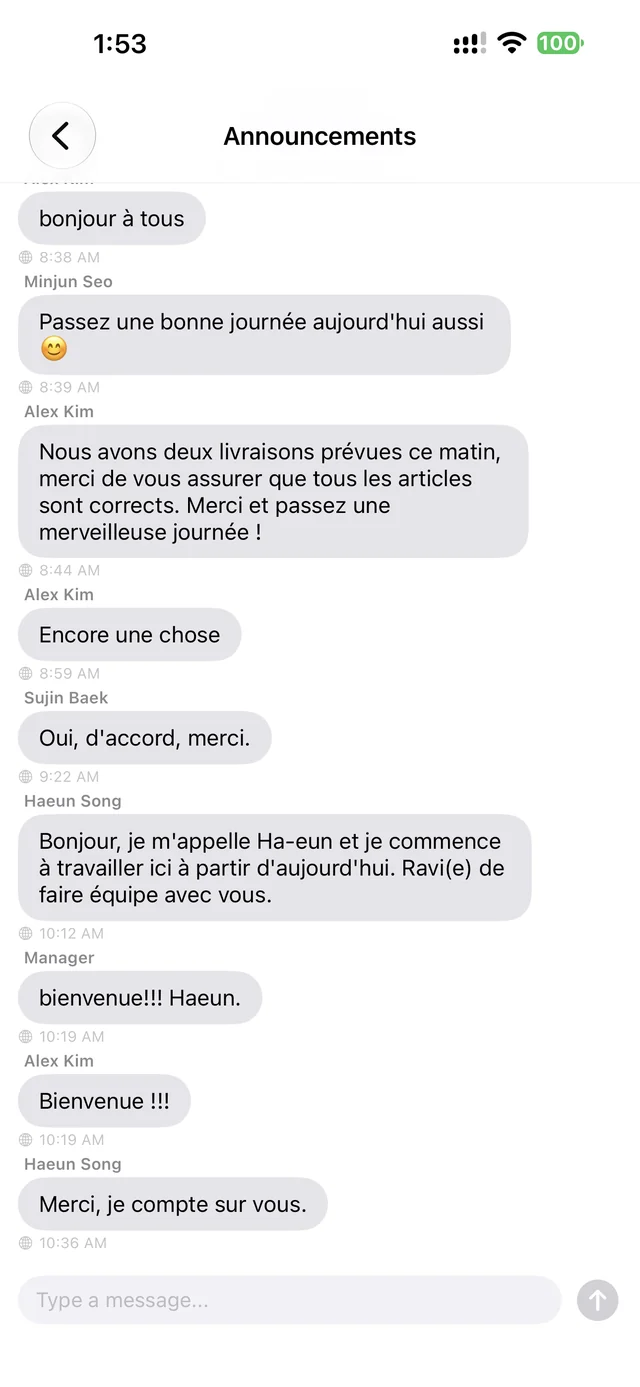
사장님 공지와 동료와의 1:1 대화가 한 목록에 보입니다. 상대가 어떤 언어로 쓰든 내가 설정한 언어로 번역되어 도착하고, 내 답장도 상대 언어로 번역돼 갑니다. 원문도 함께 볼 수 있습니다.Announcements from your manager and one-to-one chats with coworkers in a single list. Whatever language the other person writes in, it arrives translated into yours, and your replies go out translated for them. The original text is there too.

번역 언어 바꾸기Change your language

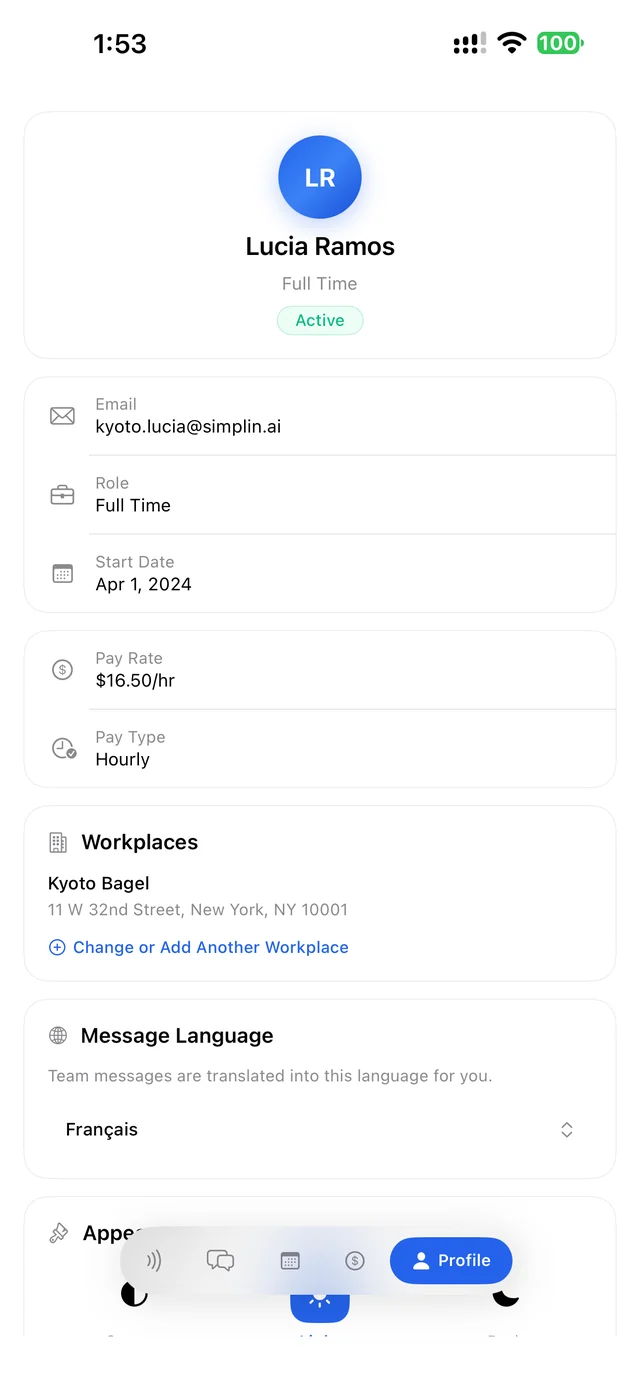
Profile 탭의 Message Language에서 고릅니다. 한국어, 영어, 스페인어, 중국어, 일본어, 프랑스어, 독일어를 지원합니다.Set it under Message Language in the Profile tab. Korean, English, Spanish, Chinese, Japanese, French, and German are supported.

Messages list with Announcements, a coworker chat, and group chats
대화 목록The conversation list
Announcements thread shown translated into French
프랑스어로 번역돼 도착한 공지Announcements arriving translated into French
Profile

내 정보, 매장, 언어Your details, workplaces, and language

Workplaces

연결된 매장이 표시됩니다. 두 매장에서 일한다면 Change or Add Another Workplace로 매장을 추가할 수 있고, Clock 화면에서 어느 매장인지 고르게 됩니다.Shows the store you are connected to. If you work at two stores, use Change or Add Another Workplace to add one, and the Clock screen will ask which store you are at.

Message Language · Appearance

메시지 번역 언어와 라이트/다크 화면을 고릅니다.Pick your message language and light or dark mode.

Sign Out · Delete AccountSign Out · Delete Account

근무 중에는 로그아웃이 막힙니다. 먼저 퇴근을 찍으세요. 계정을 삭제해도 사장님 쪽 근무 기록은 남고 로그인만 없어집니다.You cannot sign out while clocked in. Clock out first. Deleting your account removes your login but keeps your work records for your employer.

Profile tab with name, pay, Workplaces, and Message Language
내 정보와 매장, 메시지 언어Details, workplace, message language
Profile tab lower half with notifications, recent clock activity, and Sign Out
알림 설정, 최근 출퇴근, 로그아웃Notifications, recent clock activity, Sign Out

자주 묻는 질문Frequently asked questions

스티커에 대도 반응이 없어요.Nothing happens when I tap the sticker.
파란 Tap to Scan NFC 영역을 먼저 누른 뒤에 대야 합니다. iPhone은 윗부분, Android는 대개 뒷면 가운데가 NFC 위치입니다. 케이스가 두꺼우면 벗기고 해 보세요. 그래도 안 되면 위쪽 스위치에서 PIN으로 찍으세요.Tap the blue Tap to Scan NFC area first, then hold the phone to the sticker. The NFC spot is the top edge on iPhone and usually the middle of the back on Android. Thick cases can block it. If it still fails, switch to PIN at the top.
"위치를 확인할 수 없다"고 나와요.It says my location can't be verified.
폰 설정에서 Simplin의 위치 권한이 앱 사용 중 허용이고 정확한 위치가 켜져 있는지 확인하세요. 매장 안에서 다시 시도하면 됩니다.In your phone settings, make sure Simplin's location permission is While Using the App with Precise Location on. Then try again inside the store.
비밀번호를 잊었어요.I forgot my password.
로그인 화면의 Forgot password?를 누르고 사장님이 등록한 이메일을 넣으면 재설정 링크가 갑니다. 사장님도 대시보드에서 재설정 메일을 보내 줄 수 있습니다.Tap Forgot password? on the sign-in screen and enter the email your manager registered. A reset link is sent. Your manager can also send one from the dashboard.
폰을 바꿨어요.I got a new phone.
앱은 처음 로그인한 폰 하나에만 묶입니다. 새 폰에서 로그인하려면 사장님께 기기 초기화를 요청하세요. 대시보드에서 한 번 누르면 됩니다.The app is tied to the first phone you signed in on. To use a new phone, ask your manager to reset your device. It is one click in the dashboard.
초대 링크가 만료됐다고 나와요.It says the invite link has expired.
링크는 14일까지만 유효합니다. 사장님께 다시 보내 달라고 하세요. 새 링크를 만들면 이전 링크는 쓸 수 없습니다.Links work for 14 days. Ask your manager to send a new one. Once a new link is made, the old one stops working.
앱을 열 때마다 로그인해야 하나요?Do I have to sign in every time?
아니요. 한 번 로그인하면 계속 유지됩니다. 출근할 때는 앱을 열고 스티커에 대기만 하면 됩니다.No. You stay signed in. When you arrive, open the app and tap the sticker.

초대 받으셨나요? 지금 설치하세요.Got your invite? Install now.

설치하고 앱을 열면 초대가 이어지고, 비밀번호만 정하면 매장 연결까지 끝납니다.Install and open the app. Your invite carries over, and a password is all it takes to connect.