근무 기록 확인Review hours
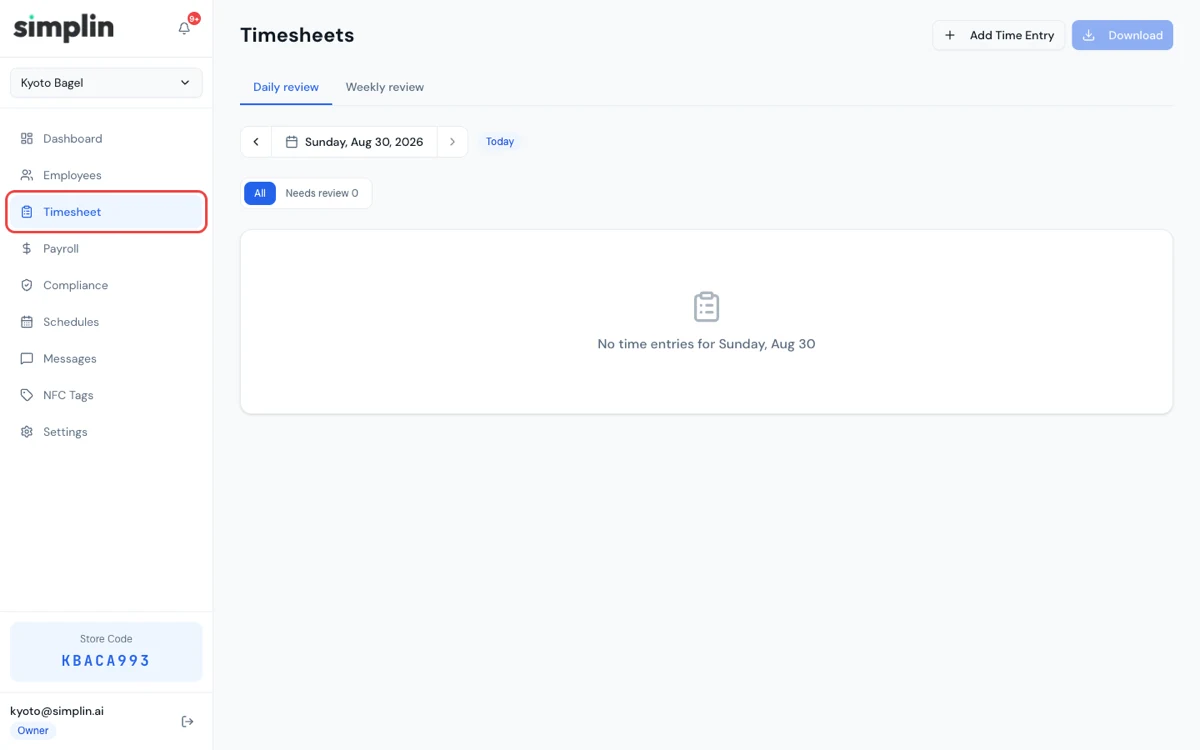
매일의 출퇴근이 사람별로 정리됩니다. 빠진 퇴근이나 잘못 찍힌 기록은 여기서 바로 추가·수정하세요. 수정 이력은 자동으로 남습니다.Every day's clock-ins and outs, by person. Missing clock-outs or wrong entries can be added or corrected right here, and every edit is logged.

가입은 5분이면 끝납니다. 가입이 확인되면 Simplin이 매장 전용 NFC 스티커를 만들어 보내드리고, 스티커가 오는 동안 사장님은 직원 등록과 스케줄을 준비해 두시면 됩니다. 스티커가 도착하기 전에도 직원들은 매장 안에서 PIN으로 출퇴근을 찍을 수 있습니다. 이 가이드는 그 순서를 화면 그대로 안내합니다. Signing up takes about five minutes. Once your account is confirmed, Simplin makes an NFC sticker for your store and ships it to you. While it is on the way, add your staff and set up a schedule. Staff can already clock in with a PIN inside the store before the sticker arrives. This guide walks through that order, screen by screen.

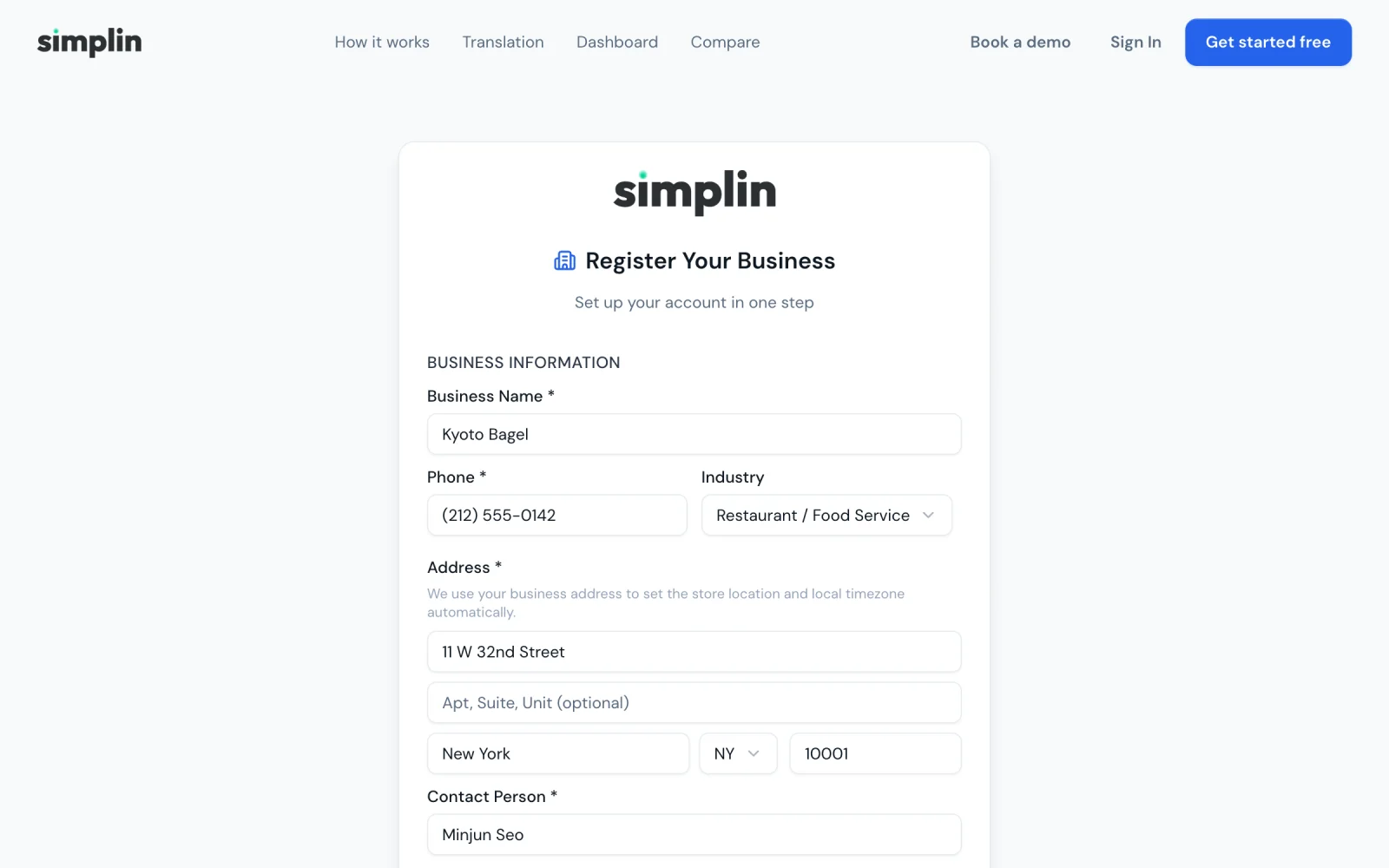
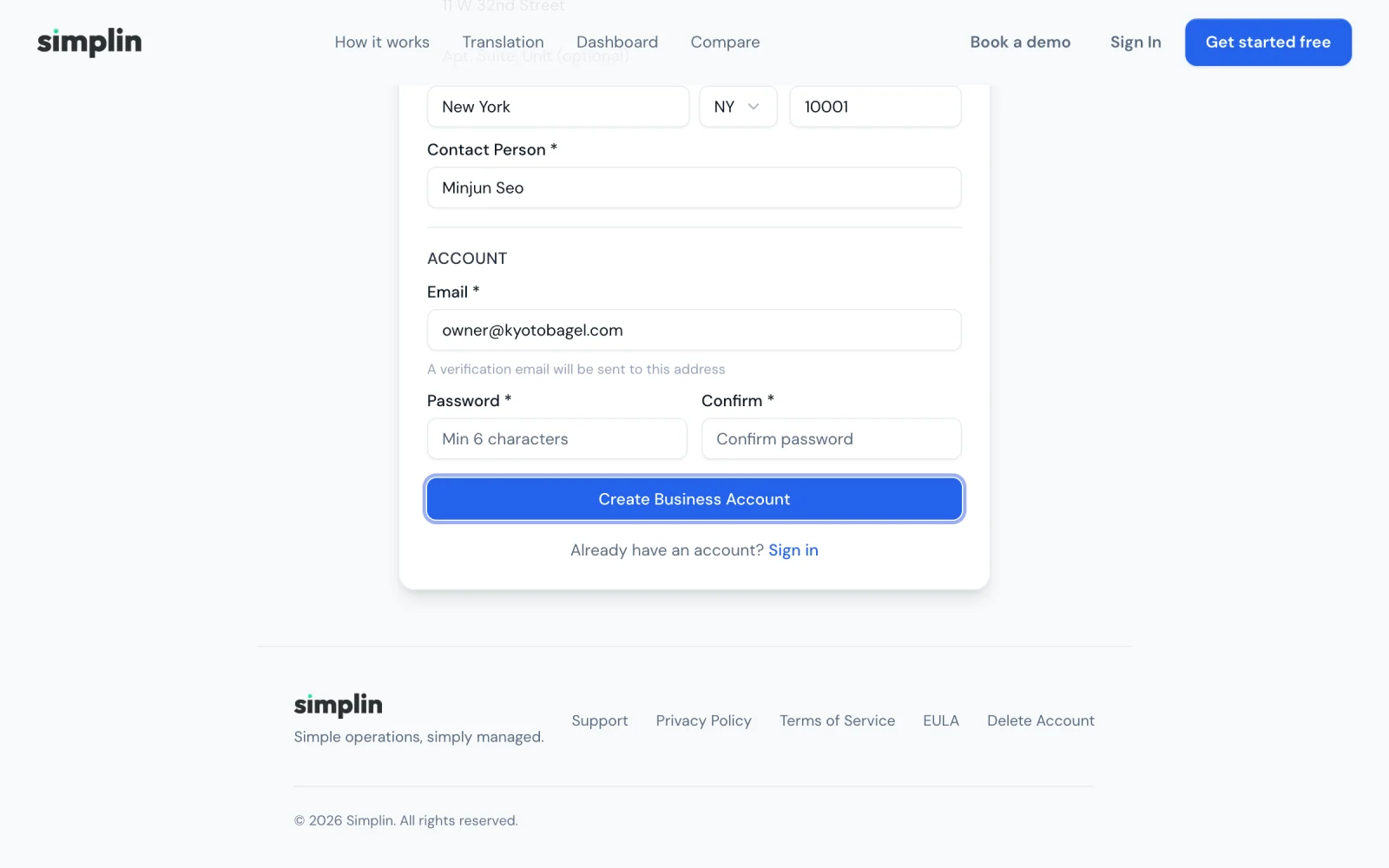
비즈니스 정보와 매장 주소를 넣으면 계정과 매장이 함께 만들어집니다. 주소가 곧 출퇴근 위치 기준입니다.Enter your business details and store address. The account and the store are created together, and the address becomes the clock-in location.
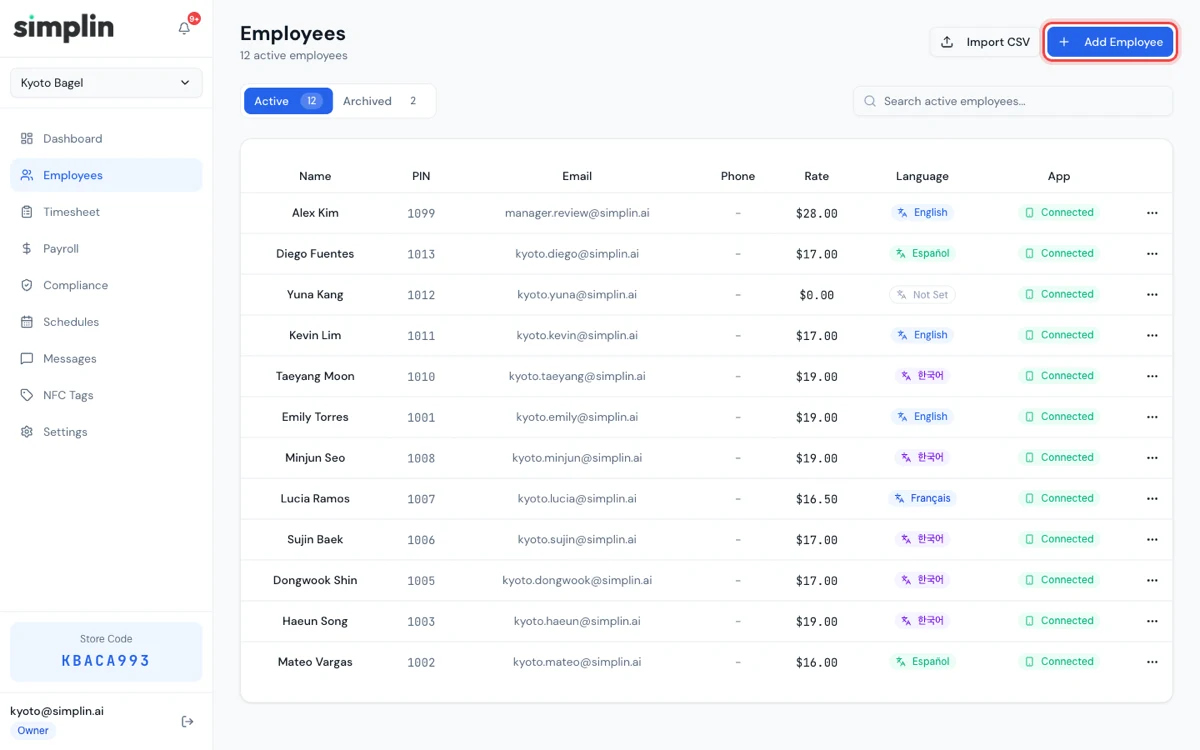
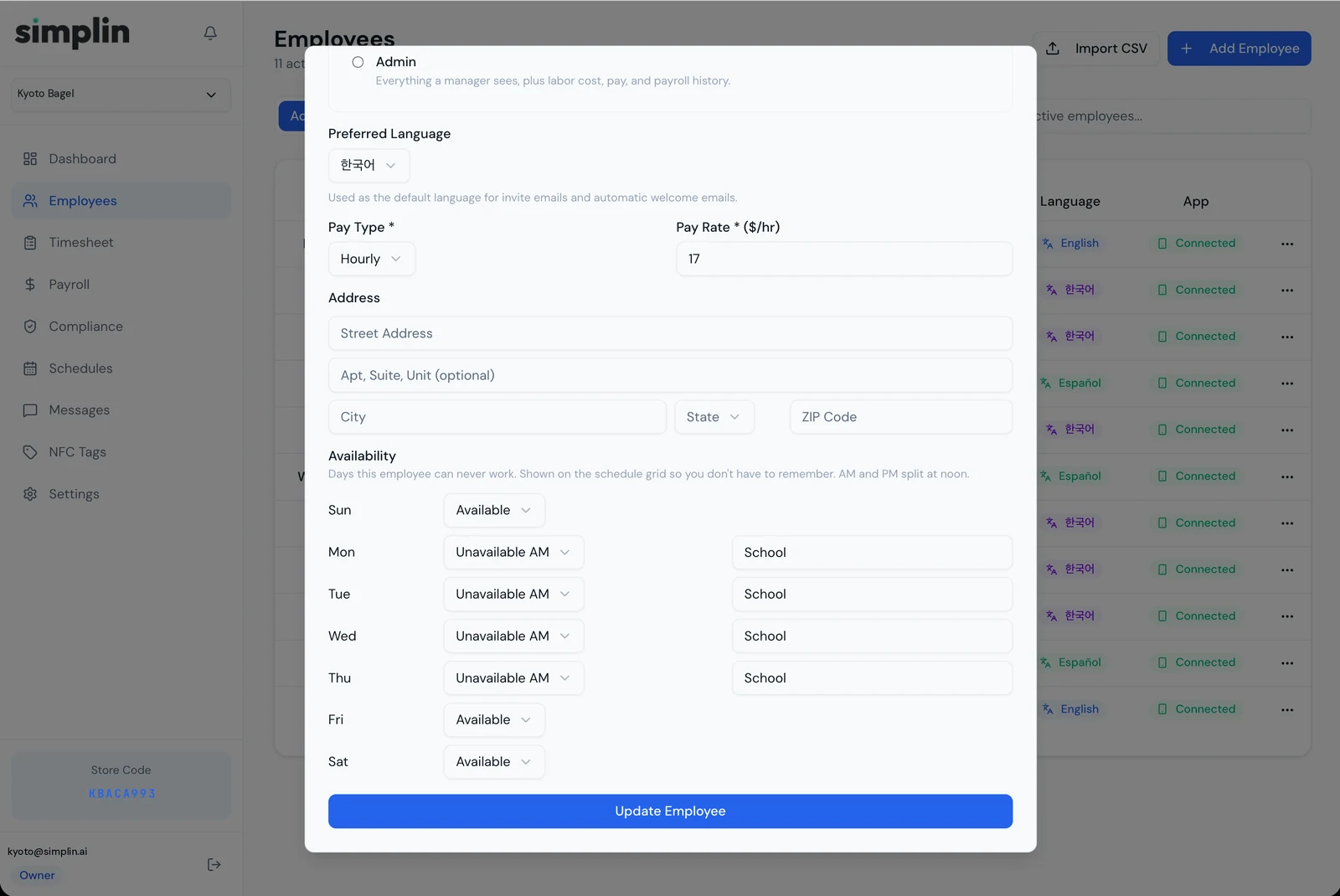
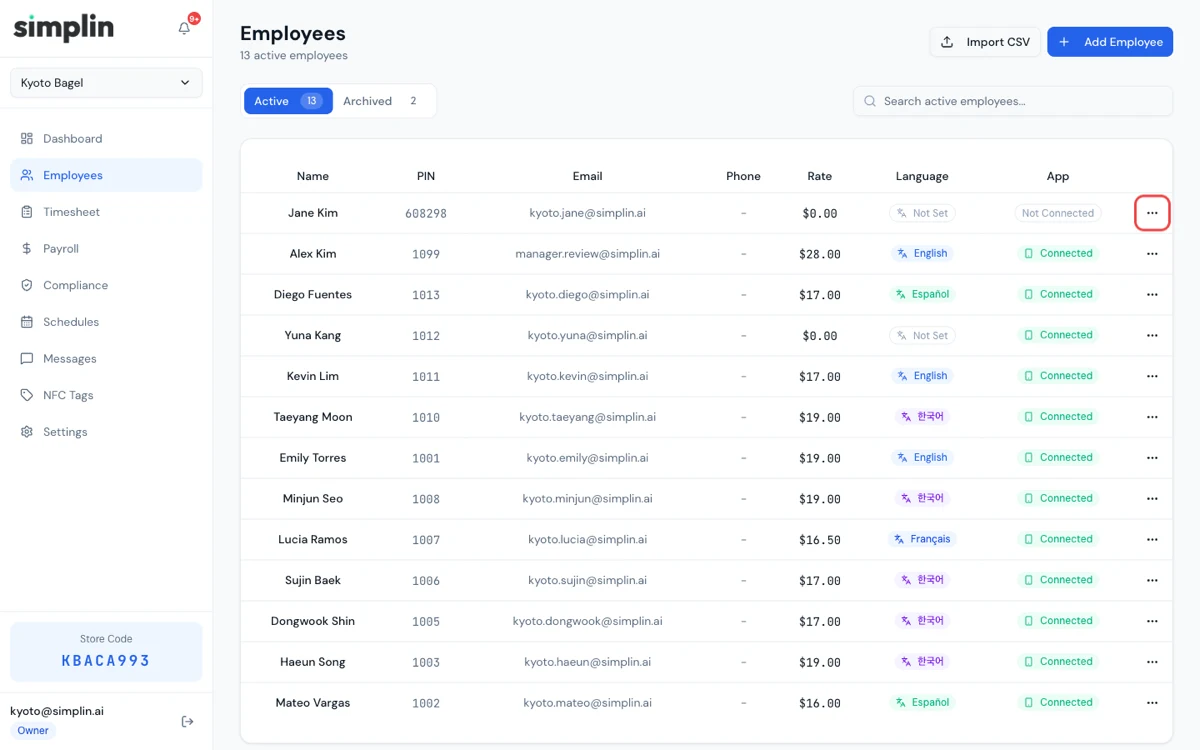
직원을 등록하고 초대 링크를 보내면 직원 앱이 연결됩니다. 그때부터 매장 안에서 PIN으로 출퇴근이 됩니다.Add employees and send invite links. Once their app is connected, they can clock in with a PIN inside the store.
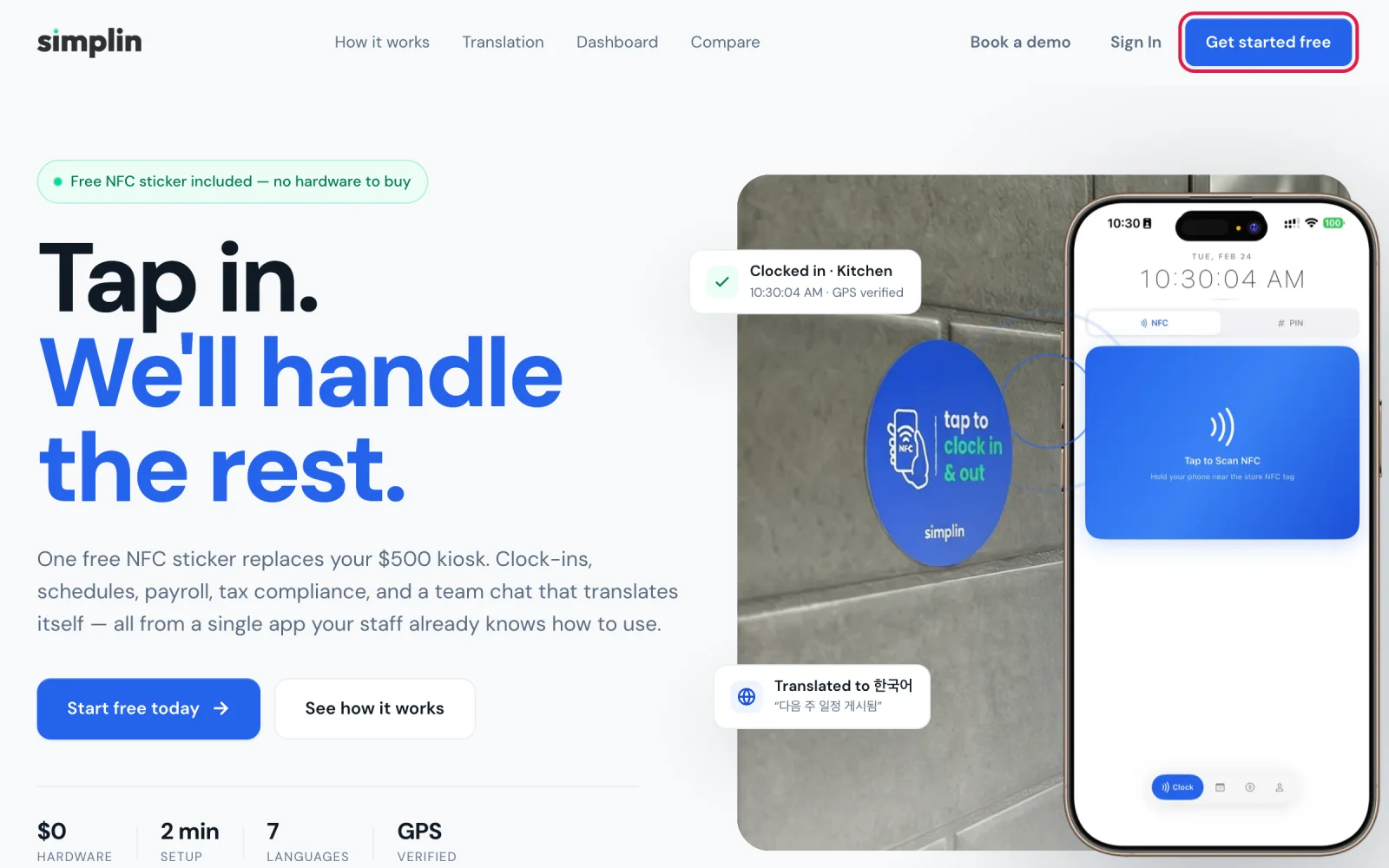
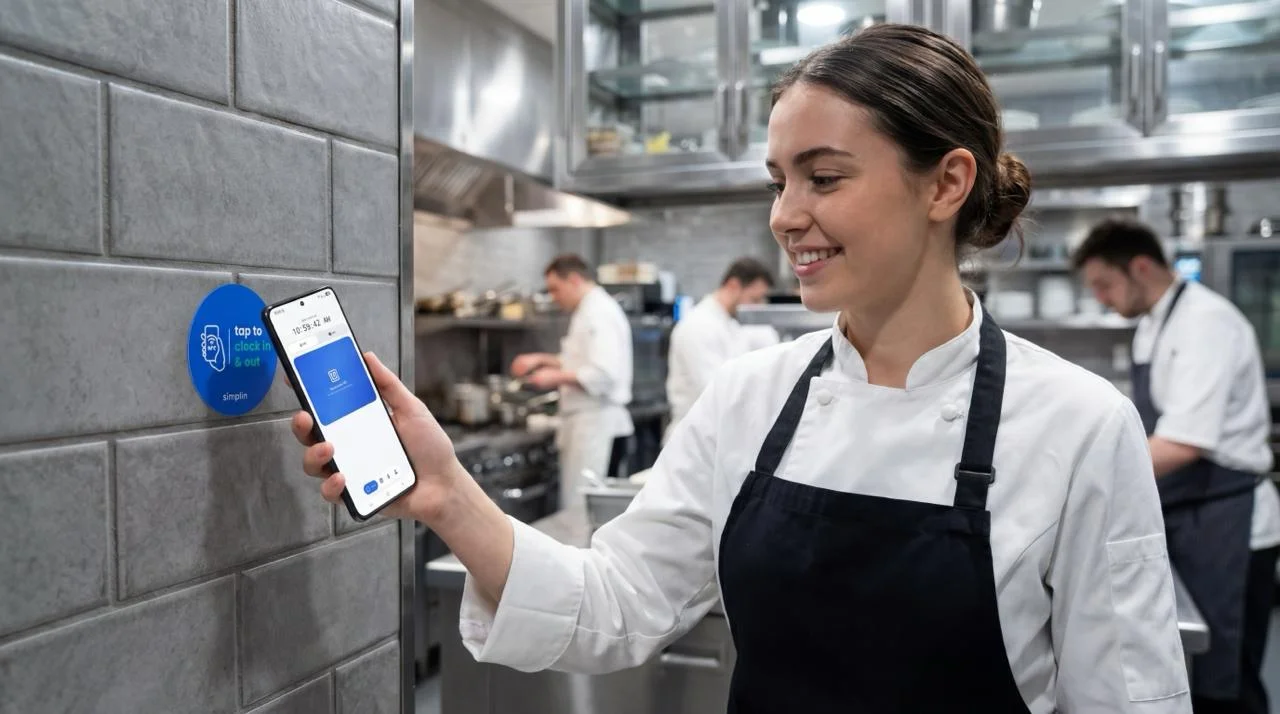
스티커는 매장에 맞게 등록된 상태로 옵니다. 직원 출입구에 붙이는 순간부터 폰을 갖다 대면 출근입니다.The sticker arrives already registered to your store. Put it by the staff entrance and a tap of the phone is a clock-in.
컴퓨터에서 하는 것이 편합니다. 한 화면짜리 폼 하나로 계정과 첫 매장이 함께 만들어집니다.A computer is easiest. One form creates both your account and your first store.


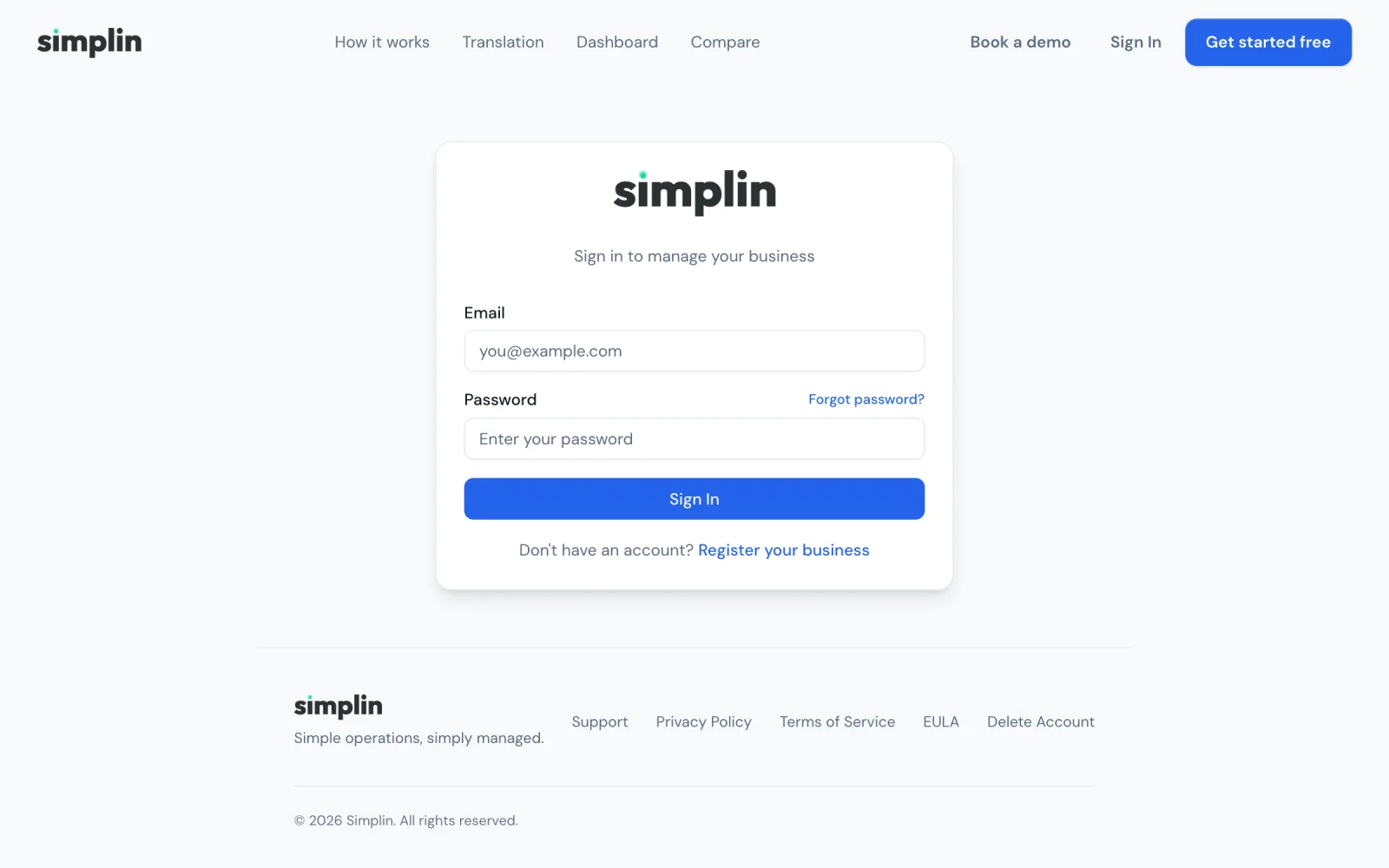
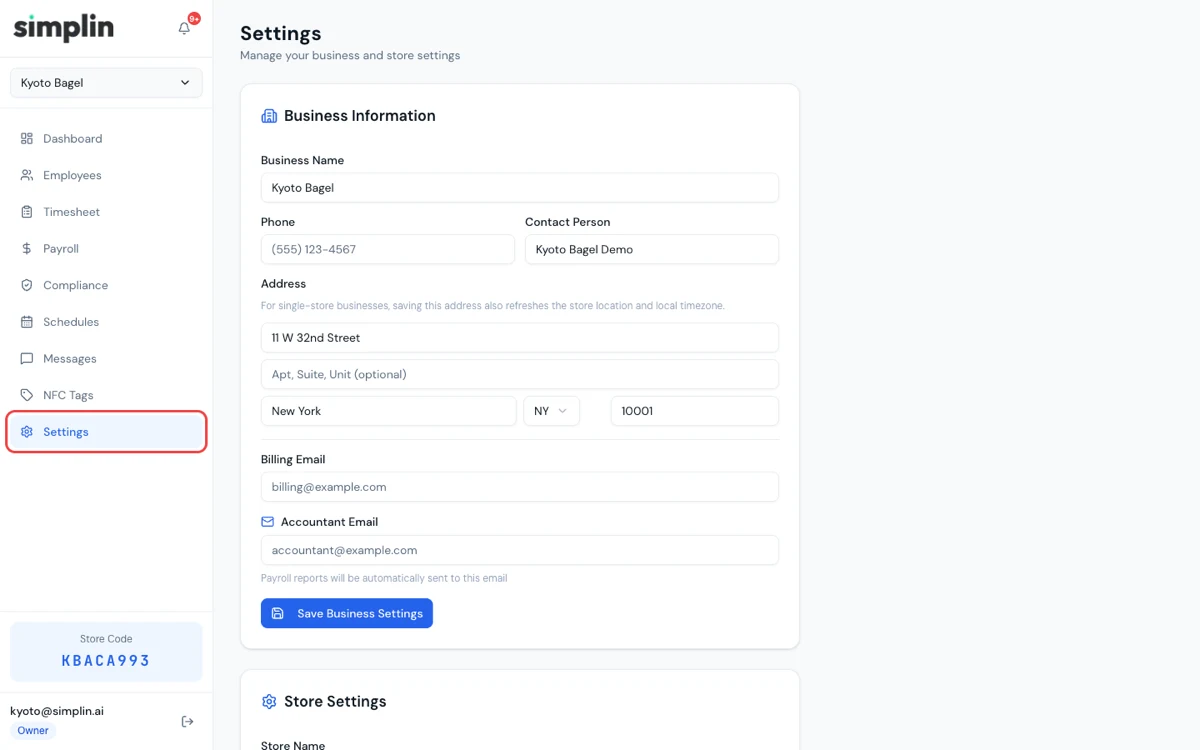
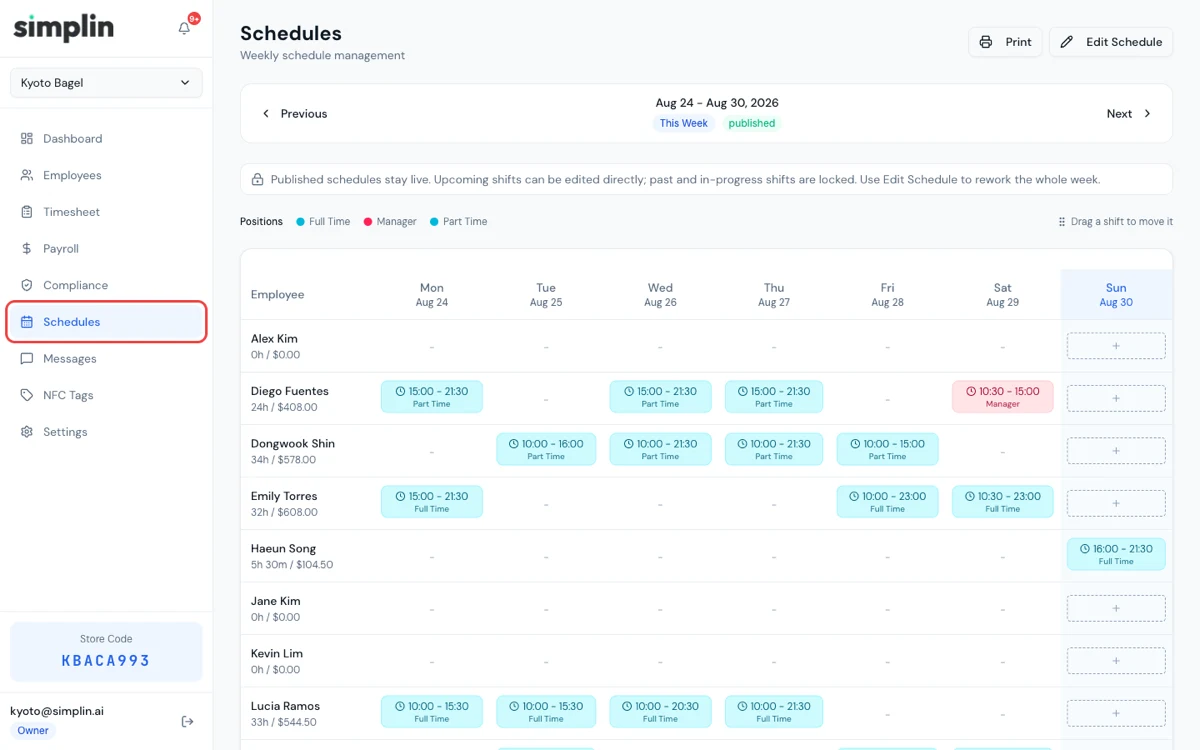
대시보드는 simplin.ai의 Sign In으로 들어갑니다. 처음 들어가면 Settings만 한 번 보고 지나가면 됩니다.Open the dashboard through Sign In on simplin.ai. On the first visit, a quick look at Settings is all you need.


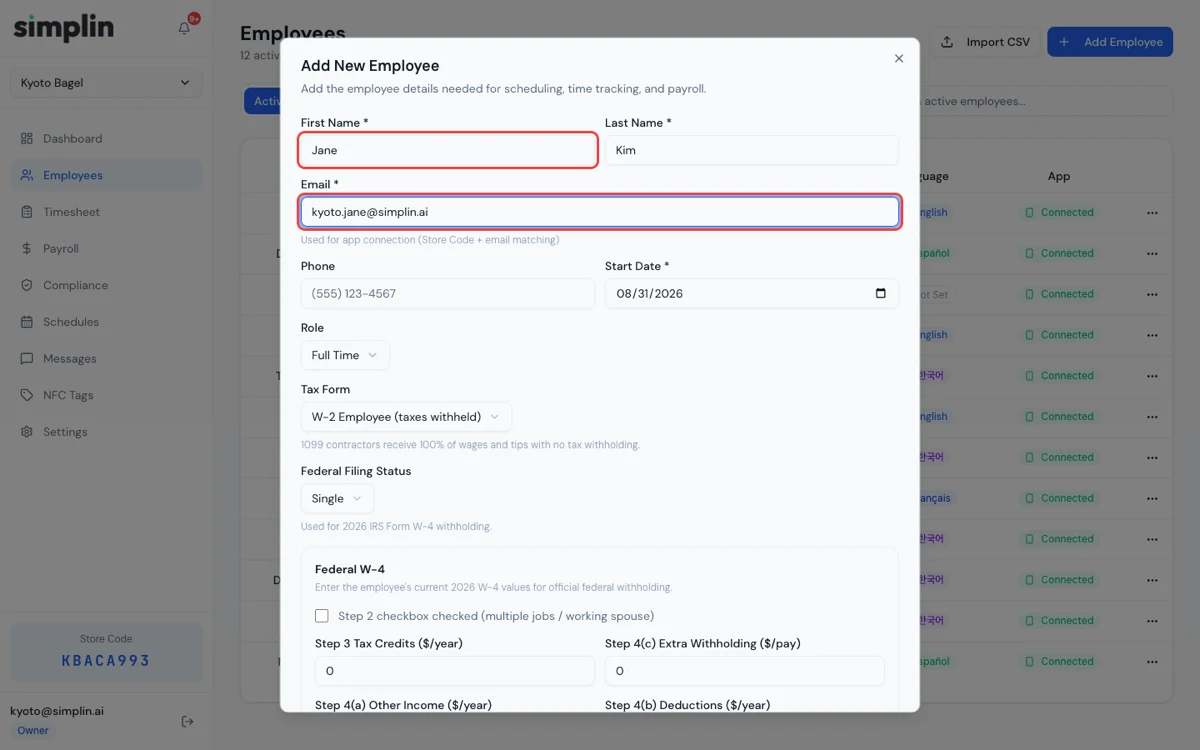
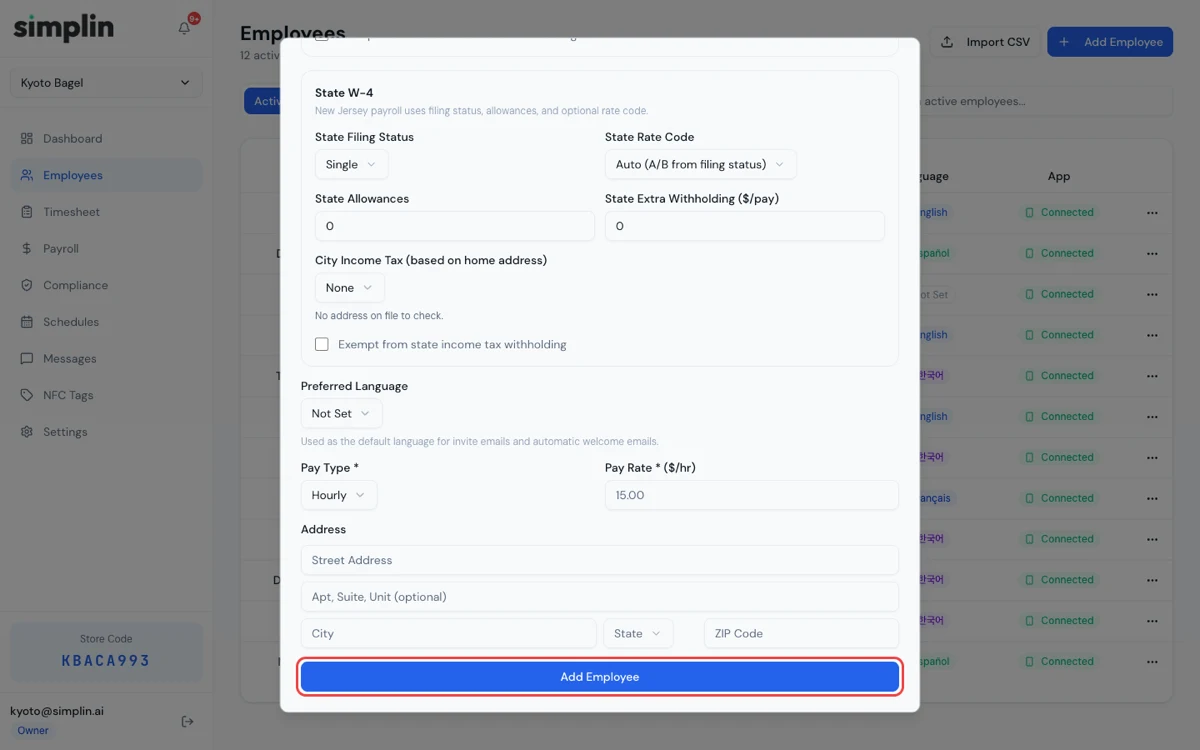
이름과 이메일만 있으면 됩니다. 세금 서류는 나중에 채워도 급여 계산 전까지는 문제없습니다.A name and an email are enough to start. Tax details can wait until before the first payroll.


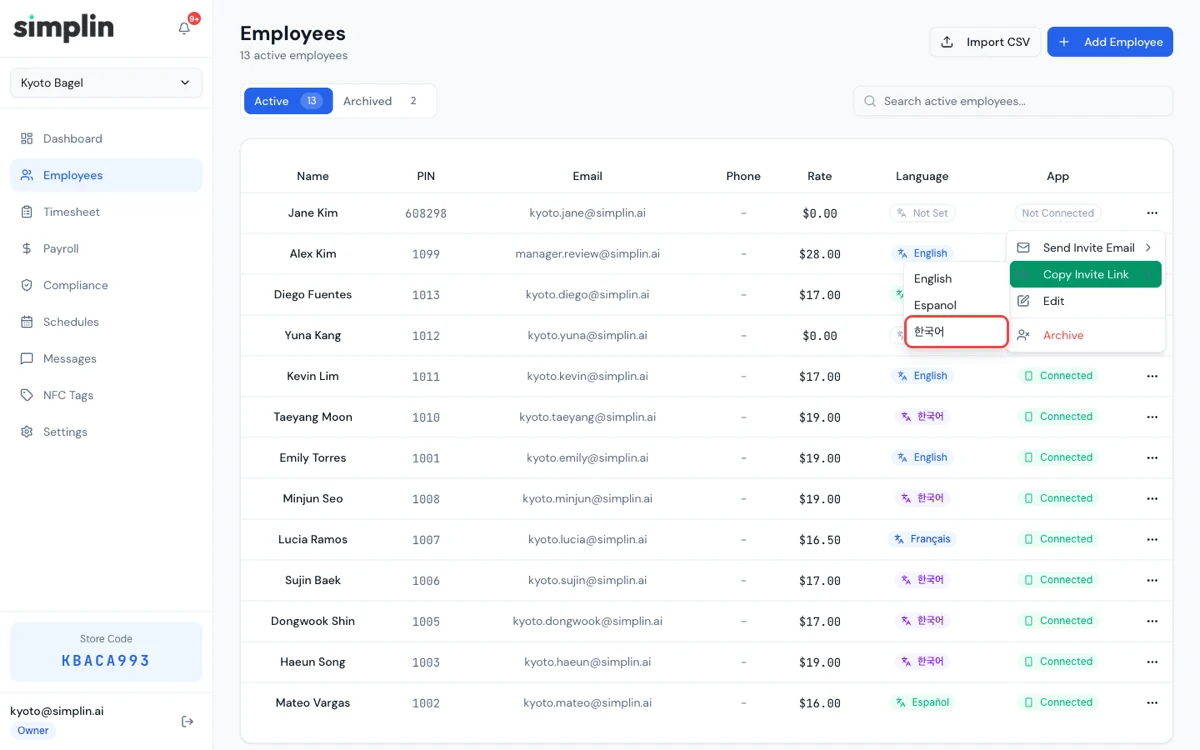
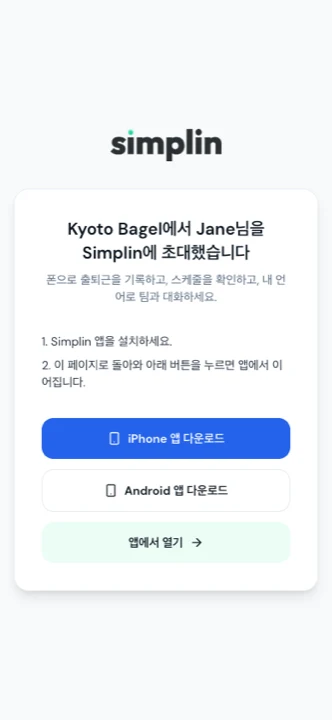
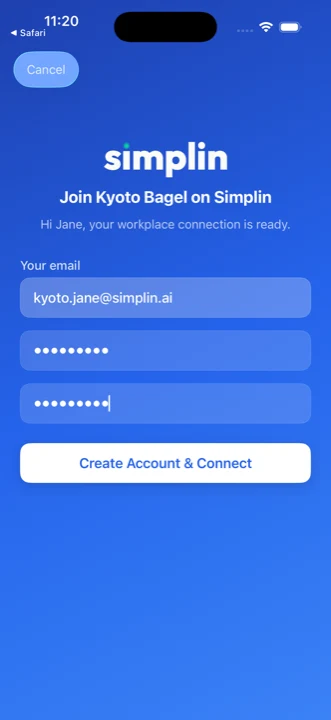
링크 하나면 직원 폰에 앱이 설치되고 매장이 연결됩니다. 매장 코드도, 인증 메일도 직원이 따로 다룰 일이 없습니다.One link installs the app on the employee's phone and connects them to your store. No store code, no verification email for them to deal with.


링크를 누르면 앱 설치 안내가 뜨고, 설치 후 링크를 한 번 더 누르면 매장 이름과 이메일이 채워진 화면이 열립니다. 직원은 비밀번호만 정하면 바로 출퇴근 화면으로 들어갑니다.Tapping the link shows an install page. After installing, tapping the link again opens a screen with the store name and email already filled in. The employee sets a password and lands on the clock screen.


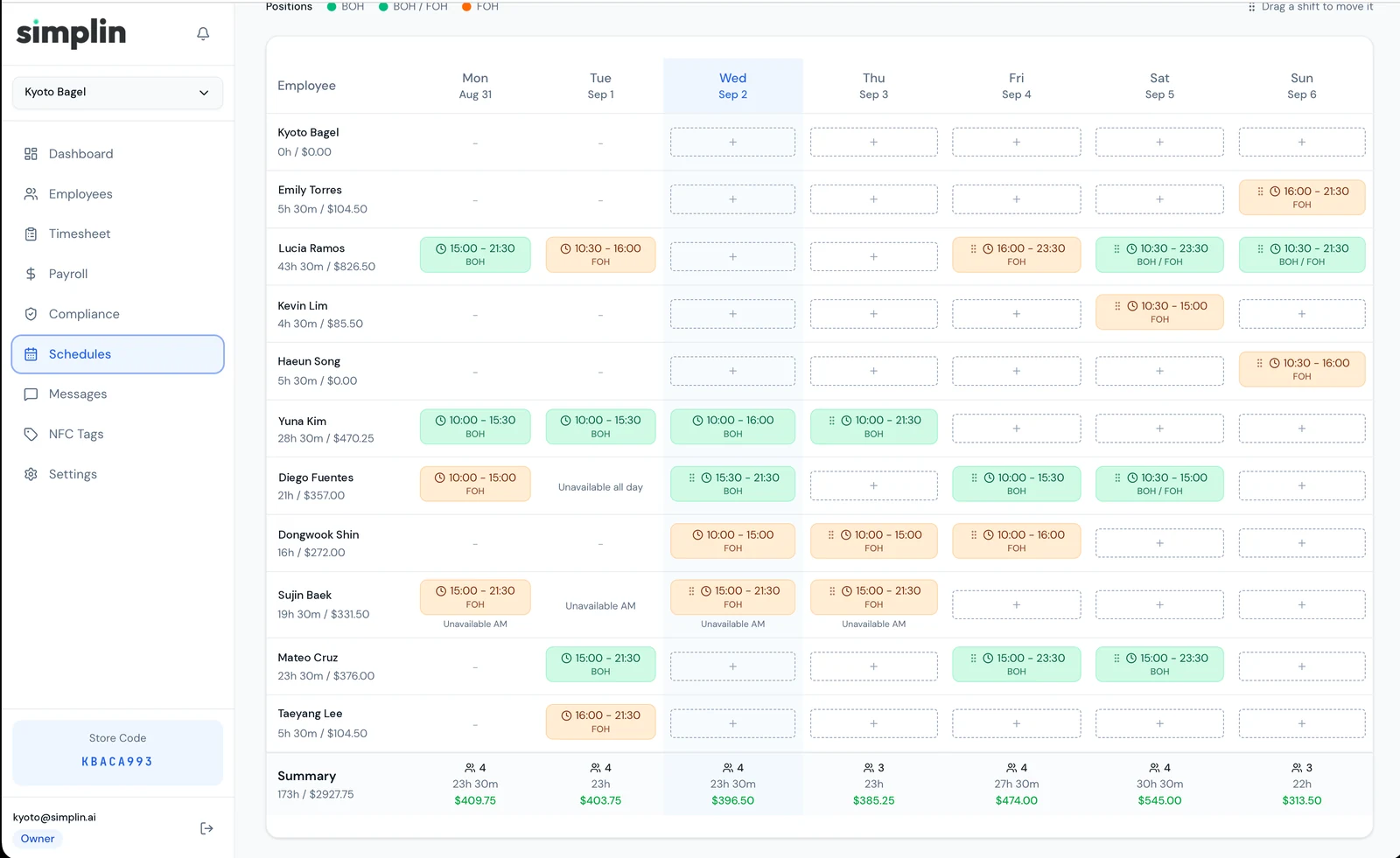
스케줄이 있어야 지각과 미출근 알림이 나가고, 직원 앱에도 근무 시간이 표시됩니다.A published schedule is what drives late and no-show alerts, and it is what staff see in their app.


앱이 연결된 직원은 스티커가 오기 전에도 출퇴근을 찍을 수 있습니다. 어느 방법이든 폰이 매장 근처에 있어야만 기록됩니다.Connected staff can clock in before the sticker arrives. Either way, the phone has to be near the store for the entry to count.
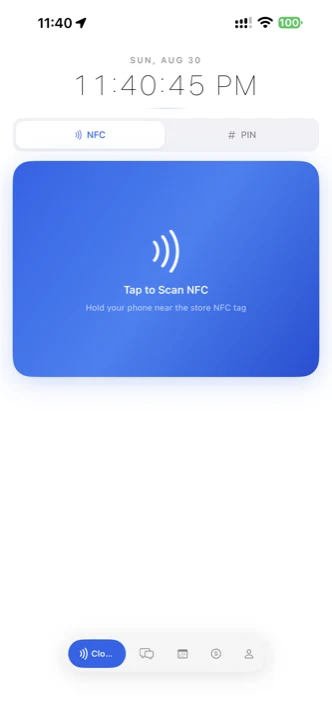
직원 앱의 Clock 화면 위쪽에서 PIN을 고르고 본인 PIN을 입력하면 출근이 찍힙니다. PIN은 Employees 화면의 직원 상세에서 볼 수 있습니다. 폰 위치가 매장 반경 밖이면 기록되지 않으니 집에서 찍는 일은 생기지 않습니다.On the Clock screen of the employee app, choose PIN at the top and enter the personal PIN. The PIN is shown in the employee's detail on the Employees page. Outside the store radius nothing is recorded, so nobody can clock in from home.
스티커는 매장에 등록된 채로 옵니다. 직원 출입구나 주방 입구처럼 모두가 지나는 벽에 붙이세요. 직원은 Clock 화면의 파란 Tap to Scan NFC를 누르고 폰을 스티커에 대면 출근, 퇴근할 때 한 번 더 대면 퇴근입니다. 붙인 스티커는 NFC Tags 메뉴에서 확인할 수 있습니다.The sticker comes already registered to your store. Put it on a wall everyone passes, like the staff entrance or the kitchen door. Staff press the blue Tap to Scan NFC area on the Clock screen and hold the phone to the sticker to clock in, and do it again to clock out. Your stickers are listed under NFC Tags.


설정이 끝나면 대시보드에서 하는 일은 근무 기록 확인, 급여 마감, 팀 메시지 정도입니다. 나머지는 자동으로 돌아갑니다.Once set up, the dashboard is for checking hours, closing payroll, and messaging the team. Everything else runs on its own.
매일의 출퇴근이 사람별로 정리됩니다. 빠진 퇴근이나 잘못 찍힌 기록은 여기서 바로 추가·수정하세요. 수정 이력은 자동으로 남습니다.Every day's clock-ins and outs, by person. Missing clock-outs or wrong entries can be added or corrected right here, and every edit is logged.

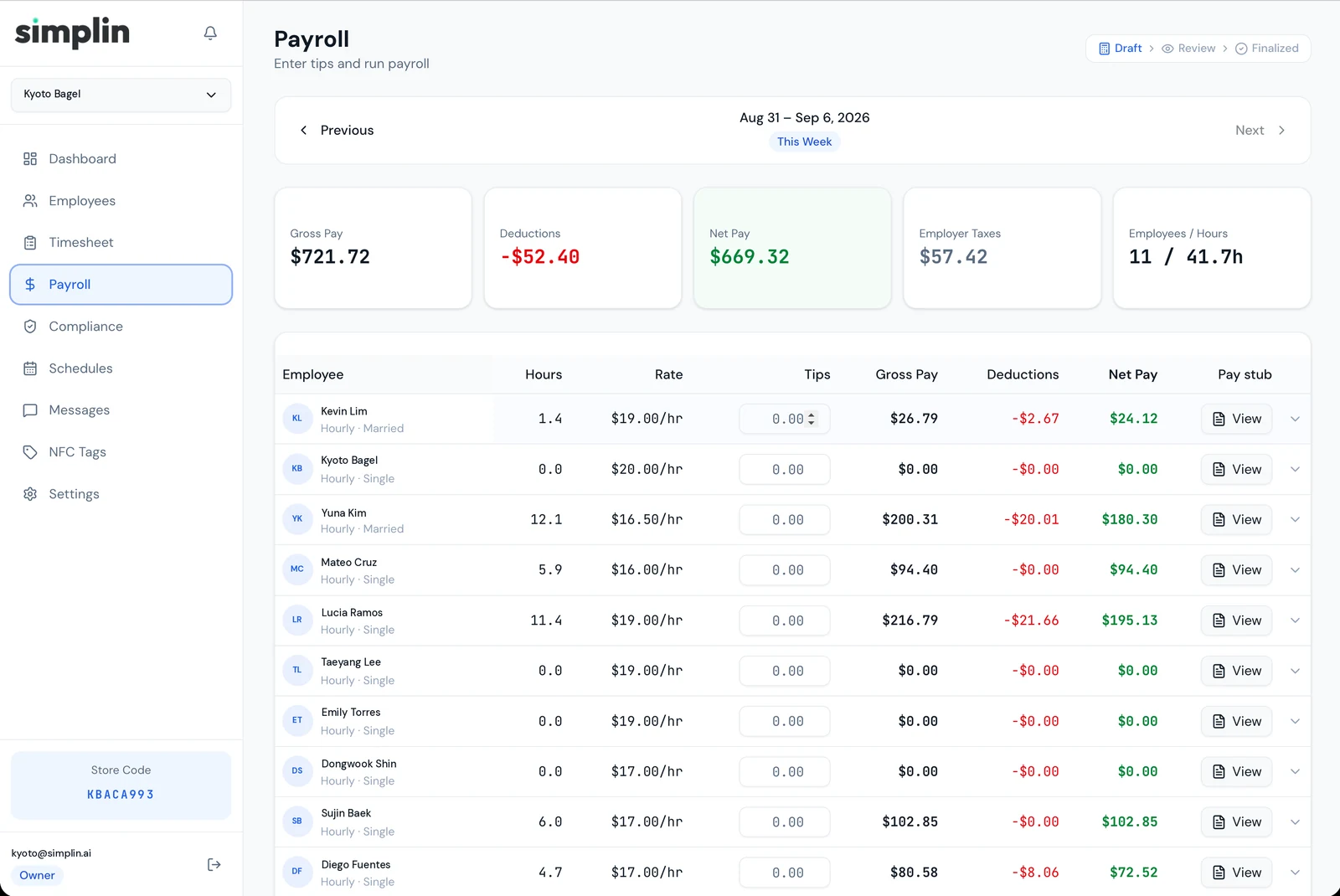
급여 기간이 끝나면 Payroll에서 기간을 고르세요. 세전 급여, 원천징수, 실지급액까지 계산된 리포트가 나오고, Settings에 회계사 이메일이 있으면 자동으로 전달됩니다.At the end of a pay period, pick it in Payroll. You get gross pay, withholding, and net pay calculated, and if an accountant email is set it is sent automatically.
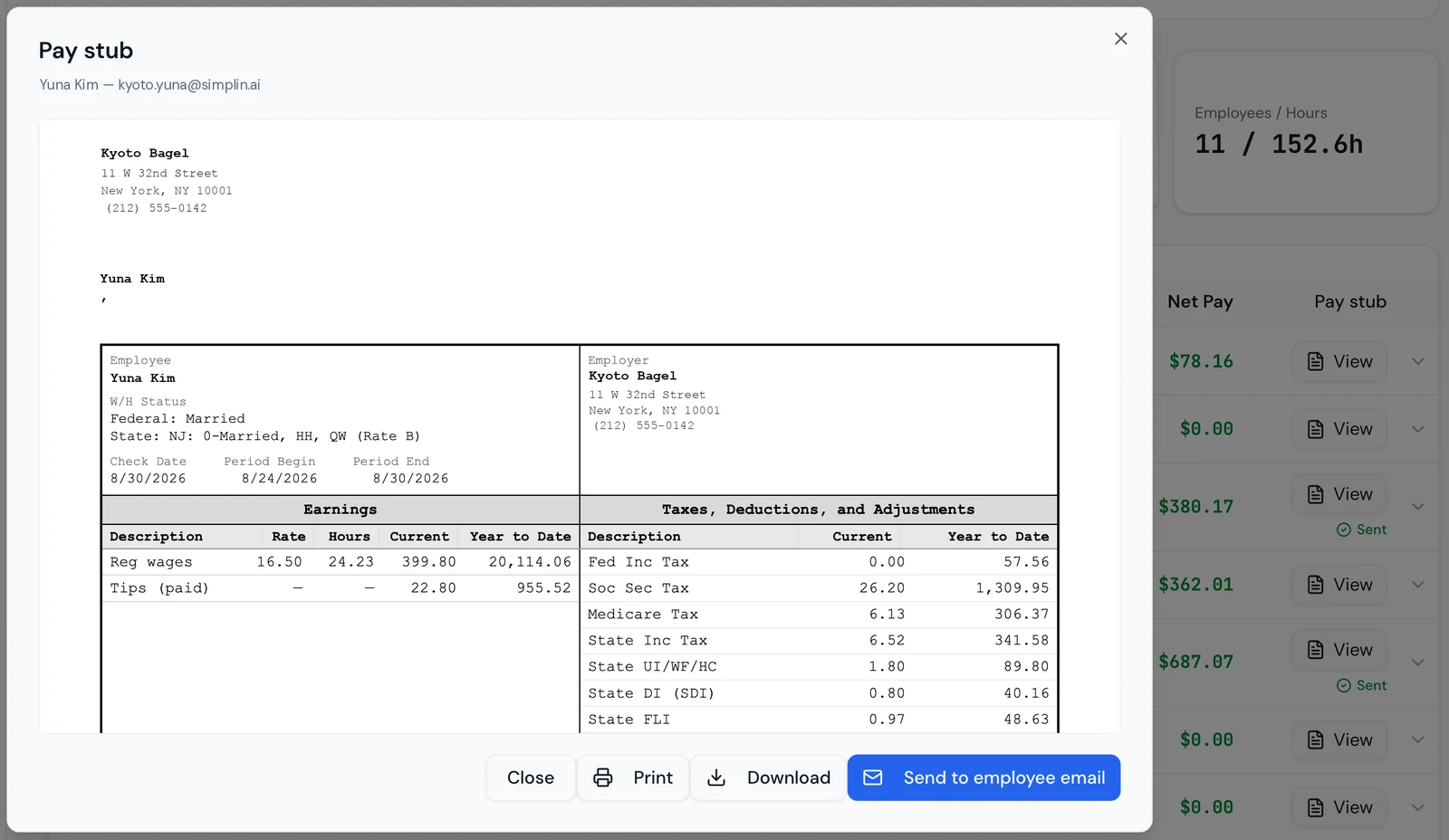
마감한 기간의 직원 줄에서 View를 누르면 그 직원의 급여 명세서(Pay stub)가 열립니다. Send to employee email을 누르면 직원 이메일로 바로 발송되고 줄에 Sent 표시가 남습니다. 직원이 예전 명세서를 다시 달라고 하면 Previous로 그 주를 찾아 같은 방법으로 보내면 됩니다. 인쇄와 PDF 다운로드도 됩니다.On a closed period, press View on an employee's row to open their pay stub. Send to employee email delivers it right away and the row shows Sent. If someone asks for an old stub, use Previous to find that week and send it the same way. Print and PDF download are there too.


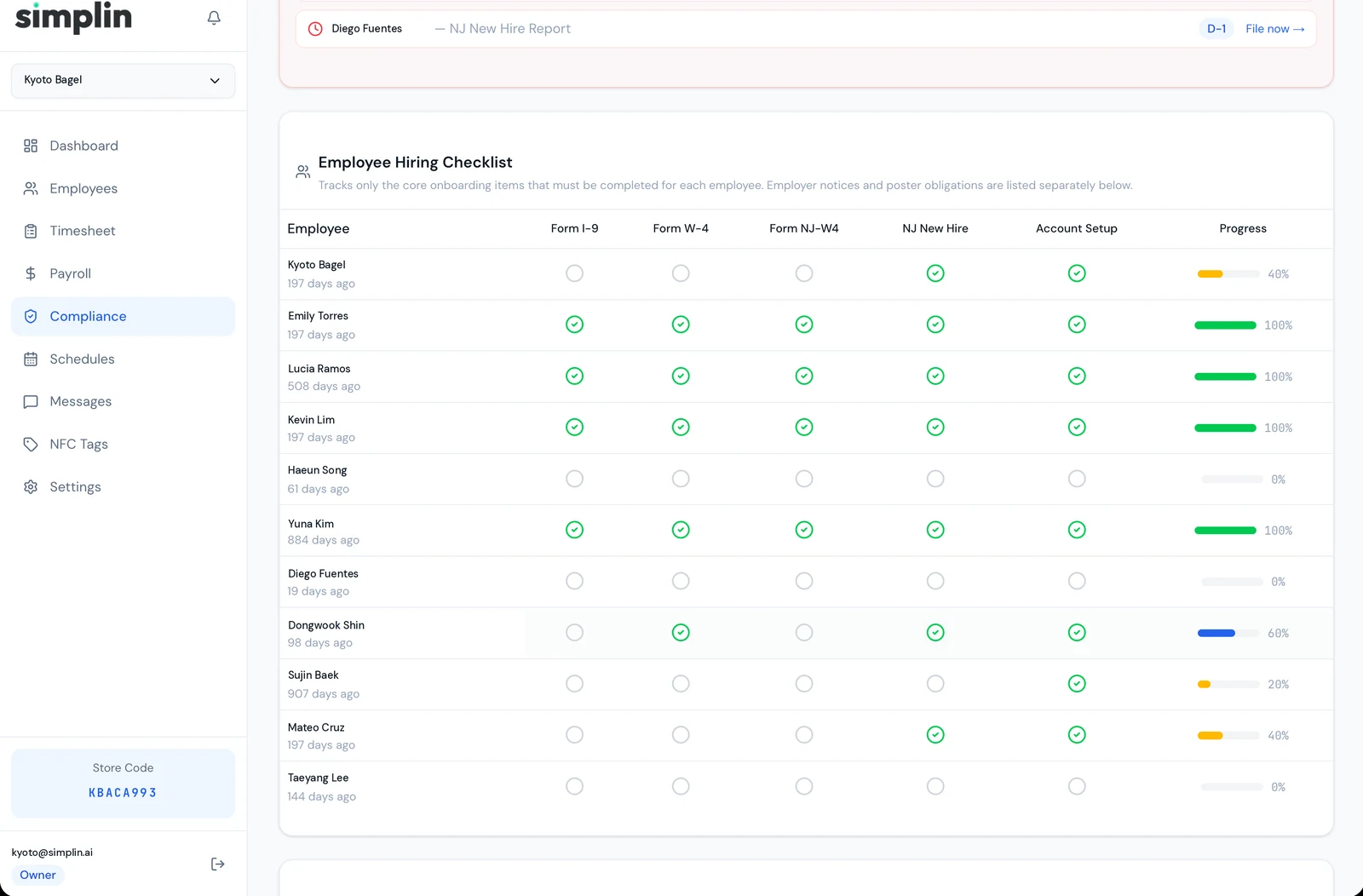
직원마다 법으로 갖춰야 하는 서류(I-9, W-4, 주 W-4, 신규 채용 신고, 계정 설정)를 체크리스트로 관리합니다. 기한이 지난 항목은 위쪽 Upcoming Deadlines에 며칠 지났는지와 함께 올라오고, File now를 누르면 신고 페이지로 이어집니다. 회계사에게 "무엇이 빠졌는지"를 이 화면 하나로 보여 주면 됩니다.A checklist per employee of the paperwork the law requires: I-9, W-4, state W-4, new hire report, and account setup. Overdue items rise to Upcoming Deadlines with the days overdue, and File now takes you to the filing page. Show your accountant this one screen to answer "what is missing".

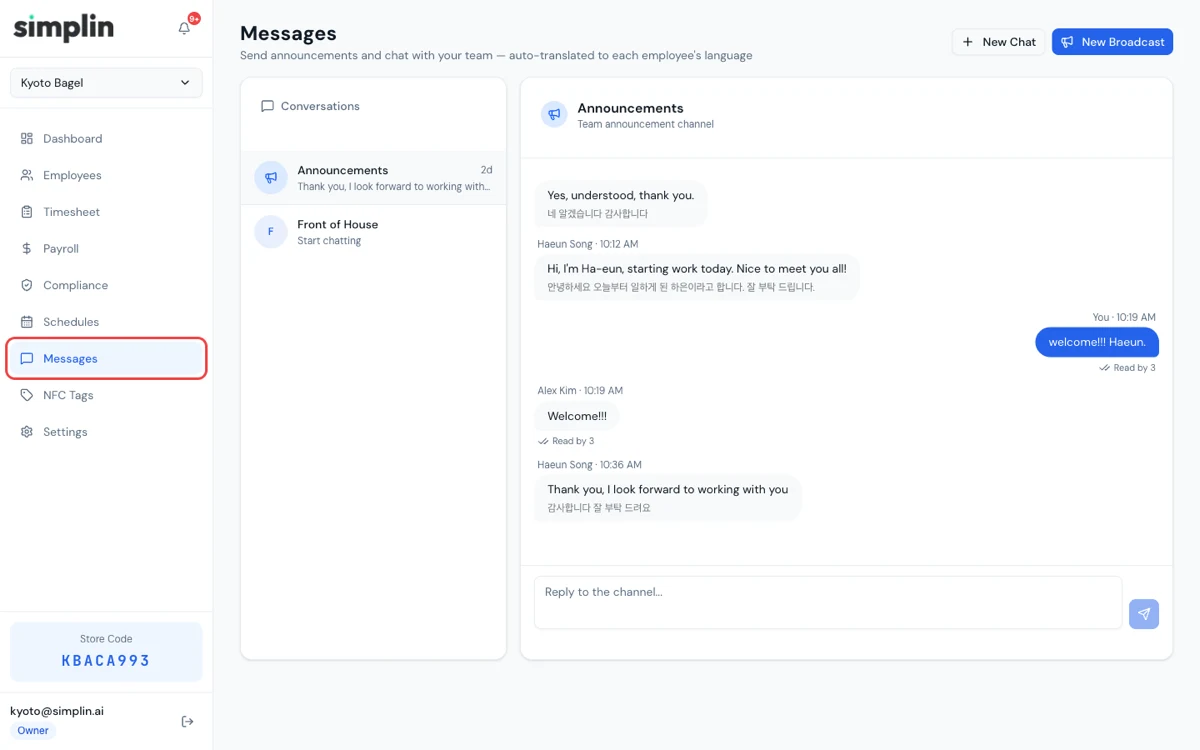
공지든 1:1이든 사장님 언어로 쓰면 직원 앱에는 각자 설정한 언어로 번역되어 도착합니다. 답장도 사장님 언어로 번역되어 옵니다.Write announcements or direct messages in your language. Each employee receives them translated into the language set in their app, and replies come back translated for you.

가입하면 스티커가 준비되는 동안 직원 등록과 스케줄을 먼저 끝내 두세요. 스티커가 오면 붙이기만 하면 됩니다.Sign up, then get staff and schedules ready while the sticker is on its way. When it arrives, just put it on the wall.